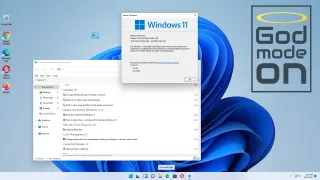
The newer and shinier Windows' UI gets, the harder it is to access its most advanced (and often important) settings. Windows 11, like Windows 10 before it, tries to guide you into the new, modern looking Settings menu while burying but not eliminating the old-fashioned Control Panel, which still houses a lot of important options.
Even if you launch the Control Panel, you may have trouble finding the particular setting you're looking for. For example, to change your environment variables (which affect what apps you can launch from any directory via the command line), you need to go to Settings->System->About->Advanced System Settings or Control Panel->System->Advanced System Settings and then click on the Environment Variables button.
The good news is that you can enable you can see a complete list of direct shortcuts by turning on "God Mode," or, more accurately, creating a God Mode folder. Sadly, this "God Mode" is not as powerful as the ones you find in video games where you can walk through walls, be invincible or get every weapon. But God Mode in Windows 11 or Windows 10 can get you to your printer or Bluetooth settings in a single click. Here's how.
How to Enable God Mode in Windows 11 or 10
1. Right click on the desktop and select New->Folder .

2. Name the folder as follows:
GodMode.{ED7BA470-8E54-465E-825C-99712043E01C}
The name will disappear once you are finished.
3. Open the folder . You'll notice a more than 200 settings menus to choose from, organized into categories such as Security and Maintenance and Power Options.
4. Drag and drop individual shortcuts to the desktop if you want even quicker access. For example, if you want one-click access to the "Manage audio devices" menu, drag it onto the desktop and and you'll have a dedicated shortcut there.
Note that the folder icon for the God Mode folder may change its icon at some point, perhaps after you reboot. We found that it looks like it does in the screen shot below.
Whatever it looks like, the God Mode folder is a real time-saver.