It’s not uncommon for authorized service centers to make a plethora of blunders, but these mistakes cannot be made outside the specifications of a particular product. For instance, one MSI gaming laptop owner says that his 144Hz screen was replaced with a 60Hz one, but given that both panels share one huge difference that’s not the refresh rate, it probably has to do with the owner being unable to adjust some setting.
The owner of an MSI GF65 Thin 10UE, a Reddit user with the handle “NOMONoP”, says that his gaming laptop’s display stopped functioning out of the blue, forcing him to make a trip to the company’s authorized service center. After completing the usual protocol and necessary steps, the owner received his machine 15 days later, which is typically a quick turnaround for service completions.
However, he claims that after using the mouse and feeling something was off, his 144Hz display was swapped out with a 60Hz one. As mentioned above, service centers can often make mistakes, but not when it’s outside the specifications of the laptop. That means 144Hz displays and 60Hz ones have different numbers of connector pins.
The higher refresh rate panel has a 40-pin eDP (Embedded DisplayPort) connector, while the 60Hz one has a 30-pin one. To confirm this difference, we headed over to Laptop Screens , and wouldn’t you know it, we were correct all along. Browsing through the MSI GF65 Thin gaming laptop series, we noticed that not only are the 144Hz panels pricier than 60Hz ones, but they ship with a 40-pin eDP connector.
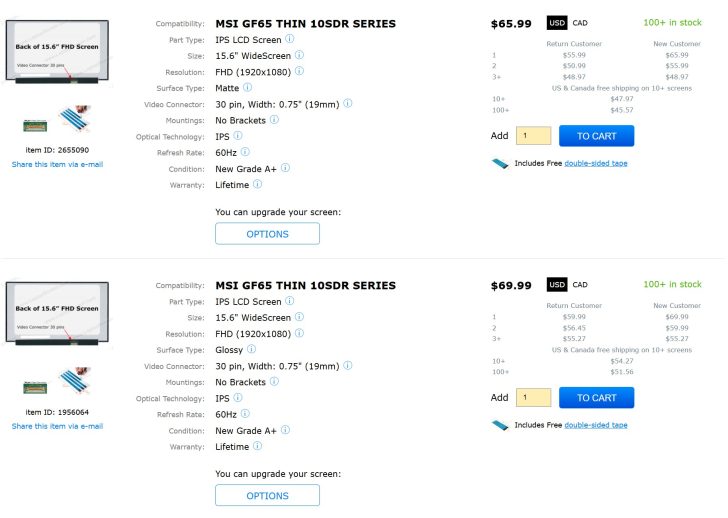
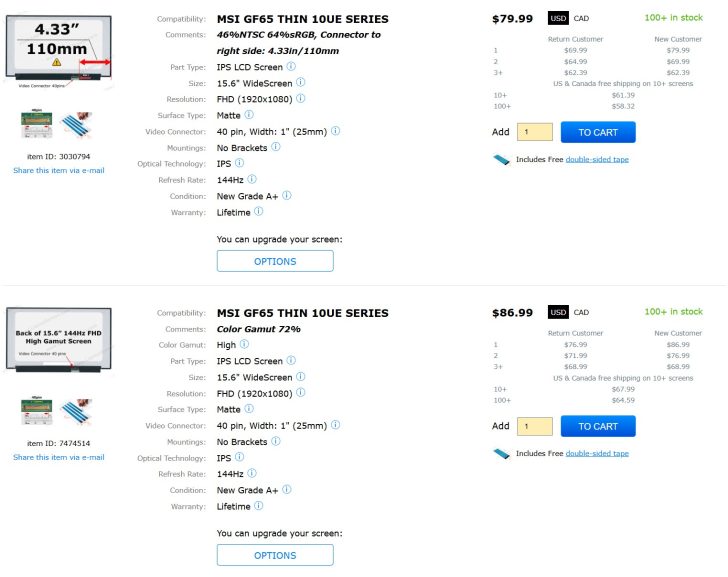
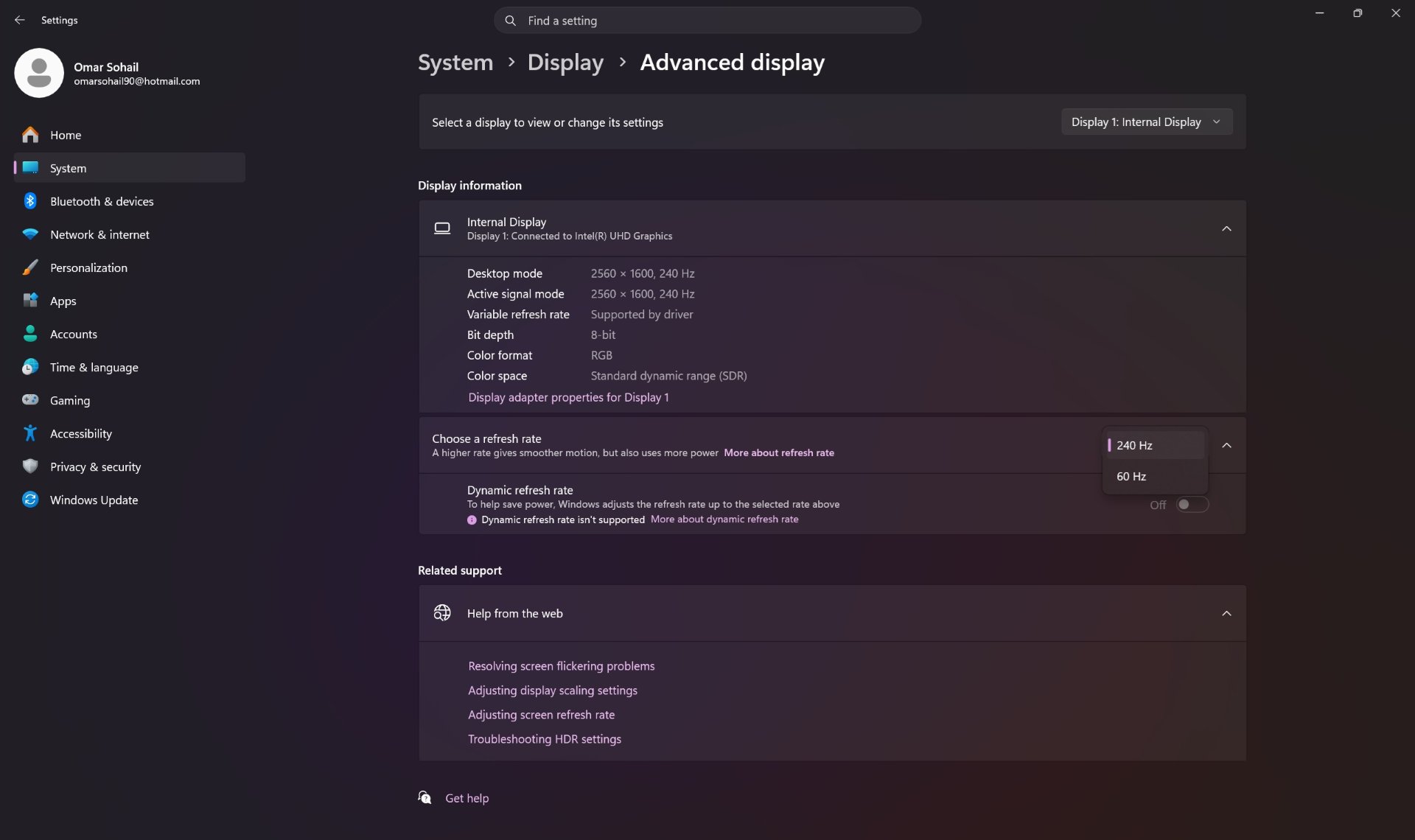
As for why the refresh rate of the current display isn’t moving past 60Hz, it probably has to do with the gaming laptop owner not adjusting the refresh rate from the settings menu. When reinstalling display drivers or replacing the display, Windows 10 or Windows 11 will revert the refresh rate to 60Hz, forcing you to manually adjust this value. For those encountering the same issue, just right-click your Desktop, then click Display settings .
From there, scroll down to Advanced display , then choose your desired refresh rate. In this case, you should see the 144Hz or 60Hz options. To be on the safe side, we’d also recommend reinstalling NVIDIA or AMD drivers by completely purging them first using DDU . Remember to head into Safe Mode before starting the uninstallation process.
Now that we’ve got this out of the way, we’ll reiterate that it’s not always a company’s fault, and that if you own a gaming laptop, whether it’s from MSI, Lenovo, ASUS, or any other brand, becoming knowledgeable or tech-savvy can save you a ton of trips to these service centers.
News Source: Reddit
Follow Wccftech on Google to get more of our news coverage in your feeds.