Nowadays, all of our information is digital -- from pictures to our banking information and everything in-between. Among these files, we all have sensitive information that, when seen by others, could cause irrevocable harm. Windows 10 doesn’t make it easy to password protect a folder, but we can guide you here on how to protect your most sensitive information.
1. Open the folder you want to protect with a password.
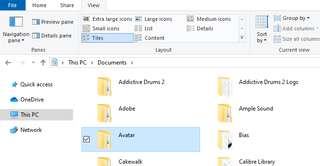
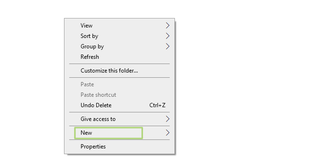
2. Right-click inside the folder , opening the context menu.
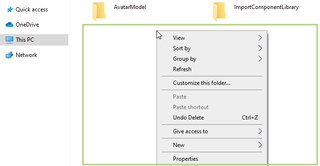
3. Select New from the context menu.
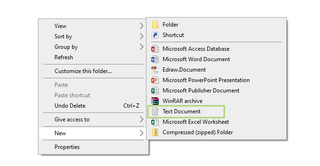
4. Click Text Document from the context menu pop-up.
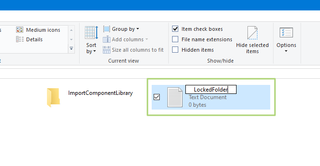
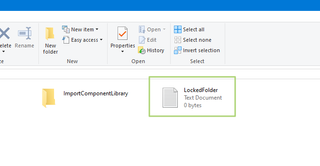
5. Rename the new text document to “LockedFolder” and press Enter .
6. Open the “LockedFolder” text document .
7. Copy the highlighted code below.
cls
@ECHO OFF
title Folder Locker
if EXIST "Control Panel.{21EC2020-3AEA-1069-A2DD-08002B30309D}" goto UNLOCK
if NOT EXIST Locker goto MDLOCKER
:CONFIRM
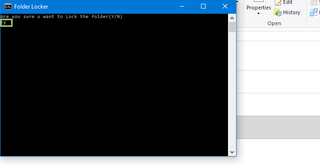
echo Are you sure u want to Lock the folder(Y/N)
set/p "cho=>"
if %cho%==Y goto LOCK
if %cho%==y goto LOCK
if %cho%==n goto END
if %cho%==N goto END
echo Invalid choice.
goto CONFIRM
:LOCK
ren Locker "Control Panel.{21EC2020-3AEA-1069-A2DD-08002B30309D}"
attrib +h +s "Control Panel.{21EC2020-3AEA-1069-A2DD-08002B30309D}"
echo Folder locked
goto End
:UNLOCK
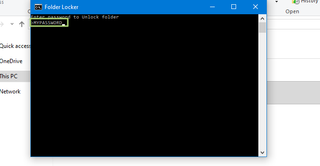
echo Enter password to Unlock folder
set/p "pass=>"
if NOT %pass%==INPUT YOUR PASSWORD HERE goto FAIL
attrib -h -s "Control Panel.{21EC2020-3AEA-1069-A2DD-08002B30309D}"
ren "Control Panel.{21EC2020-3AEA-1069-A2DD-08002B30309D}" Locker
echo Folder Unlocked successfully
goto End
:FAIL
echo Invalid password
goto end
:MDLOCKER
md Locker
echo Locker created successfully
goto End
:End
8. Paste the code into the “LockedFolder” text document.
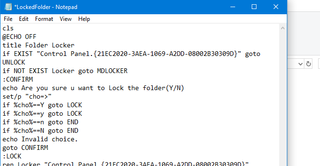
9. In the “LockedFolder” text document, find the phrase “INPUT YOUR PASSWORD HERE” .
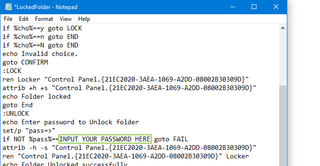
10. Replace “INPUT YOUR PASSWORD HERE” with a password of your choosing. Do not use spaces within your password.
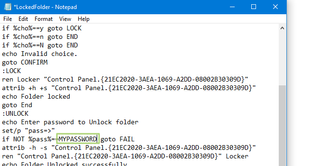
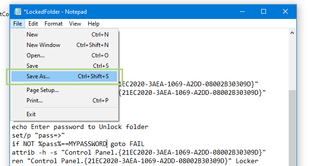
11. Click File in the header menu of the text document.
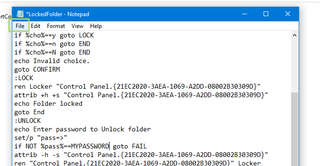
12. Select “Save as” from the drop-down menu.
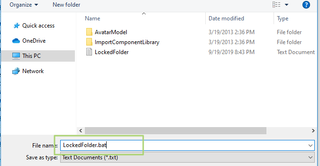
13. Change the file name “LockedFolder” to “LockedFolder.bat”.
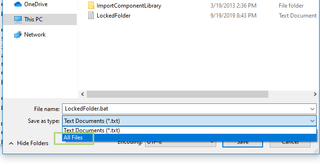
14. From the “Save as type” drop-down, select “All Files” .
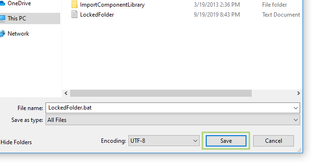
15. Click the “Save” button .
16. Double-click the “LockedFolder.bat” windows batch file.
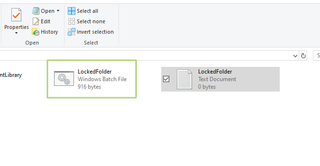
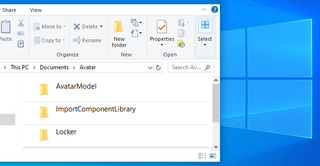
17. You will now see a new folder named “Locker”. Select, drag, and drop the files you want locked inside the Locker folder .
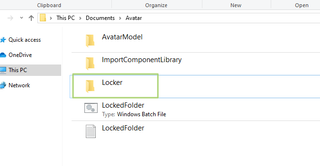
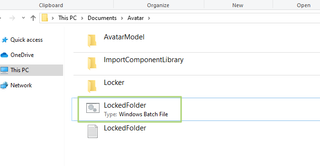
18. Right-click the Windows batch file named “LockedFolder”.
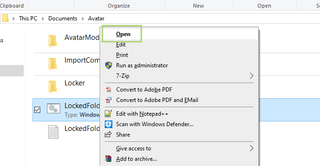
19. Select “Open” from the context menu.
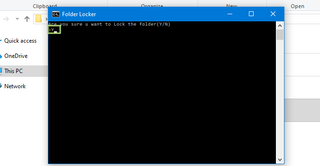
20. Type “Y” in the CMD pop-up window and then press Enter on your keyboard . Your locked folder and its contents are now hidden.
21. To unlock and make the folder visible again, double-click on the “LockedFolder” Windows batch file .
22. Enter the password you created earlier and press Enter on your keyboard when asked to unlock the folder.
Repeat these steps again to hide and password protect the folder:
24. Double click the “LockedFolder.bat” Windows batch file.
25. Type “Y” in the CMD pop-up window and then press Enter on your keyboard.