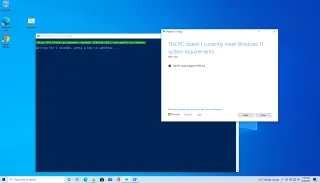
Microsoft has some strict hardware requirements that your PC must meet to install Windows 11, including TPM 2.0 support. This means that not only older computers, but virtual machines will refuse to upgrade from Windows 10, giving you a message that "this PC doesn't currently meet Windows 11 system requirements."
In fact, if you already have installed Windows 11 in a virtual machine , you may not be able to update to the latest build because Windows Update will tell you that your system doesn't meet requirements. But even if your host computer supports TPM, your VM software may not.
Fortunately, there is a simple way you can prevent the Windows Update or the Windows 11 installer from requiring TPM. A simple, open-source script will bypass the TPM-checker and allow you to upgrade. Here's how.
How to Bypass Windows 11's TPM Requirement
1. Navigate to the Github page for Aveyo's open-source Universal MediaCreationTool You actually don't need the whole tool, just the script for skipping TPM checks.
2. Scroll down to "Skip_TPM_Check_on_Dynamic_Update.cmd"
3. Select and copy all the code for that file only.

4. Open Notepad and paste the code into it.
5. Save the file as disable-tpm-check.cmd to your desktop.
6. Double click the file to run it.
7. Click Yes when asked whether to allow Windows PowerShell to make changes to your device.
You'll see PowerShell open with the note "Skip TPM Check on Dynamic Update [Installed]." Note that if you run it again, it will re-enable TPM check.
After this, if you are in the Insider Program, Windows update will start downloading Windows 11 and install it. If you are already running Windows 11 and have been denied an update, that will download.
If you are not in the Insider program, you can still upgrade to the new OS by downloading a Windows 11 ISO file , writing it to a USB drive or optical disc and running the setup.exe file from within Windows 10.
How to Bypass TPM When Clean Installing Windows 11
If you plan to do a clean install rather than an upgrade to Windows 11 and bypass TPM, you'll need an installation disk or ISO file that has TPM detection disabled. Fortunately, AveYo's Universal MediaCreationTool has you covered there too as it can generate Windows 11 ISOs or USB sticks that don't check your TPM status.
1. Navigate to the MediaCreationTool Github page .
2. Download the MediaCreationTool.zip by clicking the "View raw" links.
3. Extract MediaCreationTool.bat from the zip file and save it to the folder of your choice.
4. Run MediaCreationToolbat . If Windows flags the file as potentially dangerous, click "Run anyway."
5. Select 11 as the MCT version.
6. Select either "Create USB" or "Create ISO," depending on whether you want an ISO file or to create a bootable USB stick. If you're installing on a virtual machine, you'll want the ISO file.
7. Click Yes when asked by Windows whether to allow Power Shell to open an app. Windows media creation tool will launch. Don't be fooled because the title bar says "Windows 10 setup" as it will create you a Windows 11 ISO, provided that you choose 11.
8. Select USB flash drive or ISO file when prompted.
9. Select which USB drive or file location (for the ISO) you want.
The Media Creation Tool will now take several minutes downloading Windows 11 from Microsoft's servers and creating either a bootable USB Flash drive or an ISO file. The tool may say "Downloading Windows 10," but don't be fooled by that.
10. Boot from the installation media or ISO file you created. You should be able to install Windows 11, even though your PC or VM doesn't support TPM.
More Windows 11 Tutorials: