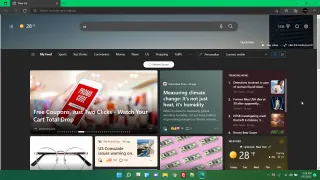
By default, Microsoft Edge shows you the world's most distracting and annoying home page (aka home screen). Instead of just showing you a search box and maybe a pretty background or some shortcuts to your favorite sites, Microsoft wants to throw a bunch of news headlines and ads in your face.
You may open your browser to read your email and ended up distracted by the latest provocative sports or politics article on the Microsoft Edge home page. Even worse, the same set of annoying distractions appears on every new tab page.
Fortunately, you can change Microsoft Edge's home page settings so you don't get much more than a search box or you can get a truly blank page. Here's how.
How to Change the Microsoft Edge Home Page
1. Open Microsoft Edge if it's not open already. If it's open already, open a new tab. Either way, the Edge home page will appear.
2. Click the settings icon in the upper right corner of the home page. It looks like a gear.

3. Select Custom from the Page layout menu.
4. Open the Content menu .
5. Select Content off .
6. Set Quick links to off , show promoted links and show greeting to off and Background to off .
At this point, your new home page and new tab page will be just a search box for Bing and, beneath it, a list of your most recent searches.
That's all well and good, but what if you want a truly blank Microsoft Edge home page or, better yet, you want a Google search box instead of a Bing one. You'll need to install a third-party extension, but it's do-able.
How to Use Any URL for the Edge Home Page
If you want to use any URL for the Edge home page / new tab page, you need to install an extension called Custom New Tab by maltejur.
1. Install Custom New Tab by navigating to its Microsoft Store page and clicking the Get button.
2. Click Add extension when prompted.
Even though you have approved it, you get a warning telling you Edge has disabled the extension by default.
3. Navigate to edge://extensions or select Extensions from the Edge menu.
4. Toggle Custom New Tab to on .
5. Click the Custom New Tab icon which should appear to the right of the address bar.
6. Enter the URL you want for the home page and new tabs and click Save . if You leave the space blank, you'll get a completely blank page.
From now on, both your Microsoft Edge home page and new tab will be the page you designated. If you want to change them, just go back to the Custom New Tab extension.