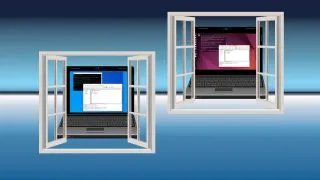
If you know how to use SSH , you’ve probably employed it for connecting to the command prompt on a remote machine. But did you know that, using a process known as X forwarding, SSH can open remote GUI applications on your desktop?
Sometimes we need to run a GUI application on a remote machine. We could use VNC, which would send the entire desktop over a network connection. Or we could just forward the application using X forwarding which reroutes the display from the remote machine, over SSH to an X server on our machine. This brings the remote application to our working desktop, instead of it being trapped inside a VNC window.
Here’s how to use X forwarding via SSH.
How to use X Forwarding in Windows
1. Download Cygwin to your Windows machine. Cygwin is a collection of Open Source tools which provide similar functionality to Linux distros.
2. Install Cygwin and click Next to navigate through the installation process.

3. Choose to install from the Internet and click Next .
4. Install Cygwin for all users and then click Next .
5. Select a location to store downloaded packages and click Next .
6. Select the Internet connection settings that match your setup. System Proxy or Direct Connection are the most likely.
7. Select a mirror for your download then click Next . Some mirrors are faster than others, but there is no way to know that here. We chose the top most https mirror.
8. Wait for the downloads to finish, then click Next .
9. Select X11 from the list, then click on the dropdown menu and select Install. Finally click Next . This will download all of the X11 tools, including those necessary for X forwarding.
10. Confirm the list of tools to install and click Next to start the installation.
11. The install process will take some time, when done click Next to move onwards.
12. Create an icon and Start Menu entry , then click Finish to close the installation script.
13. Open the Settings menu and search for Firewall . We need to open a port for the connection from our remote device to the X server running on Windows.
14. Click on “Allow an app through the firewall.”
15. Click on Change Settings and scroll down to Xming X Server and set it to allow over a Private network . Click OK to save.
16. From the Start Menu, open XLaunch .
17. Select Multiple Windows and click Next . This means that every application opened via SSH will have its own window.
18. Click on Start no client and click Next . This will just start the X Server, nothing else.
19. Ensure that Clipboard and Native OpenGL are ticked . Then click Next .
20. Click on Finish to start the X Server. You can save the configuration if you wish, but it is not essential.
The X Server is now running and in the System Tray.
21. Open PuTTY and enter the username and hostname / IP address of the remote device, in this case a Raspberry Pi.
22. From the Category menu, click on SSH , and then X11 .
23. Tick “Enable X11 Forwarding” and then click Open to start the SSH connection.
24. Enter your password and press Enter . Note that this will not echo your keystrokes, this is a security feature.
25. From the SSH session, run a command for a GUI application. In our example we launched Geany, a lightweight text editor. The app will take a few moments to open, but once ready we can work on files and directories as if we were sitting at the remote machine.
How to Use X Forwarding in Linux
Linux users have a much easier time with X forwarding, as they already have some form of X server installed on their machine.
1. Open a terminal and SSH into the remote machine. Add “-X” to the end of the command to use X forwarding. We can place the -X at the very end or just after “ssh”m the syntax is pretty loose in this case.
ssh -X username@remotemachine.local
2. From the SSH session, run a command for a GUI application . In our example we launched Geany, a lightweight text editor. The app will take a few moments to open, but once ready we can work on files and directories as if we were sitting at the remote machine.
How to Use X Forwarding in macOS
Apple’s macOS shares lots of Unix / BSD tools, but in order to use X forwarding we need to install some extra software.
1. Download XQuartz .
2. Open the XQuartz DMG file in your Downloads folder.
3. Double click on the XQuartz.pkg file to start the installer.
4. Click Continue to move through the installation process.
5. Click Continue and agree to the License.
6. Set your install location and click Install , then Continue Installation. Note that you will be logged out of your session and all other applications will be closed.
7. Reboot your mac and then log back in to macOS. This isn’t strictly necessary but it provides us with a fresh start, and an opportunity for backend configuration files to be correct.
8. Open a terminal and use the SSH command along with “-X” to connect to the remote machine. Note that you will need to use the IP address, we were unable to use the hostname of the device.
ssh -X username@ip address
9. From the SSH session, run a command for a GUI application . In our example we launched Geany, a lightweight text editor. The app will take a few moments to open, but once ready we can work on files and directories as if we were sitting at the remote machine.