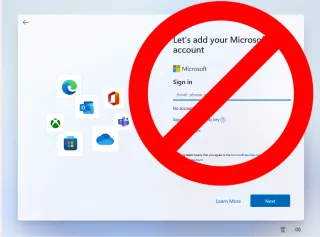
By default, you must have (or create) a Microsoft account in order to install Windows 11 Home (and versions of Pro that are build 22H2 and up). Though Microsoft accounts are free, there are many reasons why you would want to install Windows 11 without one.
Maybe you want to use a local account because you are installing Windows 11 on a child's PC or on a PC that you plan to sell, give to a friend or donate to a charity . Obviously, you don't want someone else having a computer with your account on it. Or perhaps you just like your privacy and don't want to create an account with Microsoft in the first place.
Whatever your reason for doing so, there's an easy way to install Windows 11 without using a Microsoft account.
How to Install Windows 11 Without a Microsoft Account
There's a simple trick for using a local account that works on current builds of Windows and involves cutting off Internet at just the right time in the setup process. However, the upcoming (and currently in preview) build 22H2 is wise to this trick and blocks it, demanding that you reconnect to the Internet before continuing If you have Windows 11 22H2, you'll need to prepare your install disk using Rufus, a process we document further down this page.
If you've already downloaded created a Windows 11 boot disk with Rufus or otherwise, follow these steps to set up without a Microsoft account.
1. Follow the Windows 11 install process until you get to the login screen where you are prompted to sign in or create a Microsoft account.

Now's the time to cut off the Internet. If you have a physical connection you can always pull the plug, but it's easier to just use a command to turn off your PC's Internet until the next time it reboots, which it will as part of the setup process anyway.
2. Hit Shift + F10 . A command prompt appears.
3. Type ipconfig /release and hit Enter to disable Internet.
4. Close the command prompt .
5. Click the back arrow in the upper left corner of the screen.
A new login screen appears asking "Who's going to use this device?"
6. Enter a username you want to use for your local account and click Next .
7. Enter a password you would like to use and click Next . You can also leave this field blank and have no password, but that's not recommended.
8. Complete the rest of the install process as you normally would.
Using the "No Thank You" Method to Install Windows 11 with a Local Account
Another method, which works even with Windows 22H2, involves confusing Windows by entering an email address that, apparently, has been used too many times. This worked for us, but Microsoft could get wise to it.
1. Enter no@thankyou.com as the email address and click Next when Windows 11 setup prompts you to log into your Microsoft account.
2. Enter any text you want in the password field and click Sign in .
If this method words, you'll get a message saying "Oops, something went wrong."
3. Click Next.
A screen appears saying "Who's going to use this device?" This is the local account creation screen.
4. Enter the username you want to use.
5. Enter a password and click Next . You can leave the field blank but it's not recommended.
How to Create a Windows 11 Install Disk that Allows Bypassing Microsoft Accounts
If you're installing Windows 11 22H2 or newer, you need to use Rufus (or some other method) to create the install disk so that turning off Internet during the setup process allows you to proceed with a local account. Otherwise, when you follow the steps above, you'll get a message saying "Oops, you've lost your internet connection" and demanding you get back online to continue the install.
Here's how to make a Windows 11 install disk that will let you disconnect from the Internet during setup so you can create a local account instead of using a Microsoft one.
1. Download the Windows 11 ISO file for Windows 11 22H2 (build 22621.169 or higher). As of this writing, you can only get the ISO for that build directly by using UUP Dump (opens in new tab) . We explain how to perform this process in our how to down a Windows 11 ISO file article.
2. Insert a USB Flash drive you want to use as an install disk if one is not already inserted. Note that this drive will be completely erased during the process and it must be at least 8GB. If you are just installing Windows in a virtual machine, you can create an ISO file instead of writing directly to a Flash drive, but we'll assume you're not doing that here.
3. Download and launch Rufus version 3.19 or higher. There is no installation process, but you may be asked to confirm permissions by Windows User Account control.
4. Select the USB drive from the menu in Rufus if it's not already selected.
5. Click Select and choose the ISO file .
6. Click Start at the bottom of the Rufus window.
A dialog box appears with a few options for bypassing Windows 11 install requirements.
7. Toggle "Remove requirement for an online Microsoft account" to on and click Ok. You may also want to toggle on the other options, which include Removing the Secure Boot / TPM 2.0, RAM and Storage requirements. But if your computer meets those requirements, it doesn't pay to do that.
8. Click Ok if warned that Rufus will destroy all data on the USB Flash drive. It is expected to overwrite all contents of the drive.
Rufus will take a few minutes to copy files to the USB Flash drive. When it's done, you will have a bootable Flash drive.