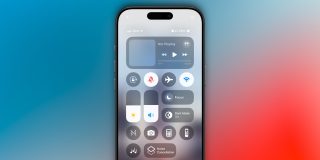
iOS 18 introduced a major redesign to Control Center across iPhone and iPad. Here are the three controls that have made a big difference for me over several months of use.
Apple offers a built-in method for toggling AirPods noise cancellation in Control Center. But it’s not great.
When AirPods are connected, you can long-press the volume slider to view the current noise cancellation setting. Then if you want to make a change, you have to tap a couple more times to do that.
Replacing that hassle, I use a simple Shortcuts control that automatically enables noise cancellation mode with a single tap.
All you need is a basic shortcut , featuring the Set Noise Control Mode action. Then, add the Shortcuts control to Control Center and configure it appropriately.
Now, whenever I’m unsure whether my ’s noise cancellation is turned on, I just hit my new Control Center button—no further taps necessary.
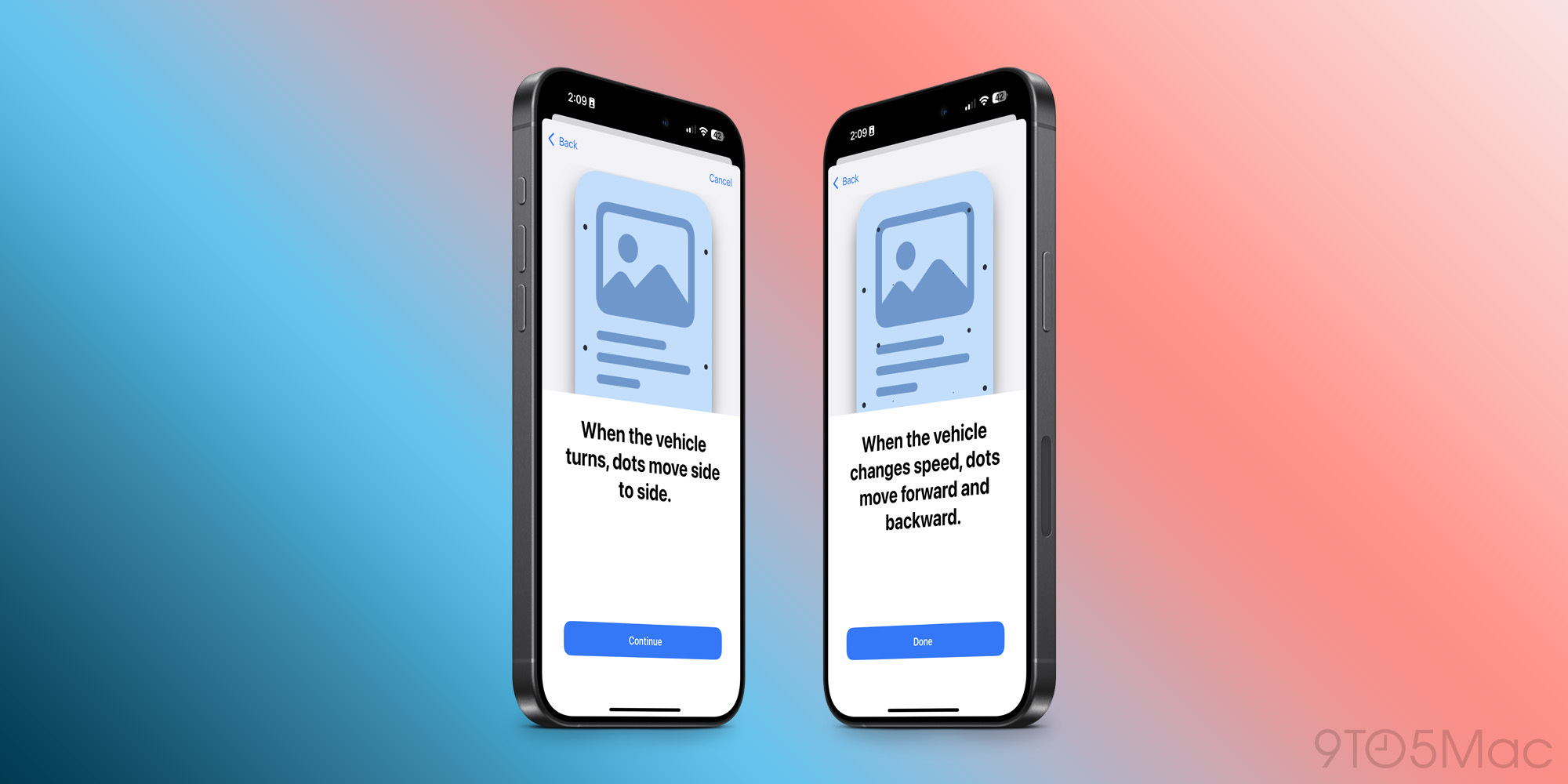
One of the most remarkable iOS 18 feature additions, for me at least, is Vehicle Motion Cues.
The new feature fixed my vehicle motion sickness , and I turn it on via Control Center every time I get in the car as a passenger.
:
Research shows that motion sickness is commonly caused by a sensory conflict between what a person sees and what they feel, which can prevent some users from comfortably using iPhone or iPad while riding in a moving vehicle. With Vehicle Motion Cues, animated dots on the edges of the screen represent changes in vehicle motion to help reduce sensory conflict without interfering with the main content. Using sensors built into iPhone and iPad, Vehicle Motion Cues recognizes when a user is in a moving vehicle and responds accordingly.
Vehicle Motion Cues has been great on my iPhone, but I’ve used it even more often with my iPad. Throughout the work day, I can hop in the car with my wife driving, open Control Center in iPadOS, and hit the Vehicle Motion Cues control.
The little animated dots—plus a cellular connection —remarkably make working on the go a seamless experience.
Whether I’m working from my iPad in the car, or sitting at home or in a coffee shop, ambient noise is a must.
There are plenty of white noise-type apps on the App Store, such as or . But iOS for years has offered its own built-in ambient noises too.
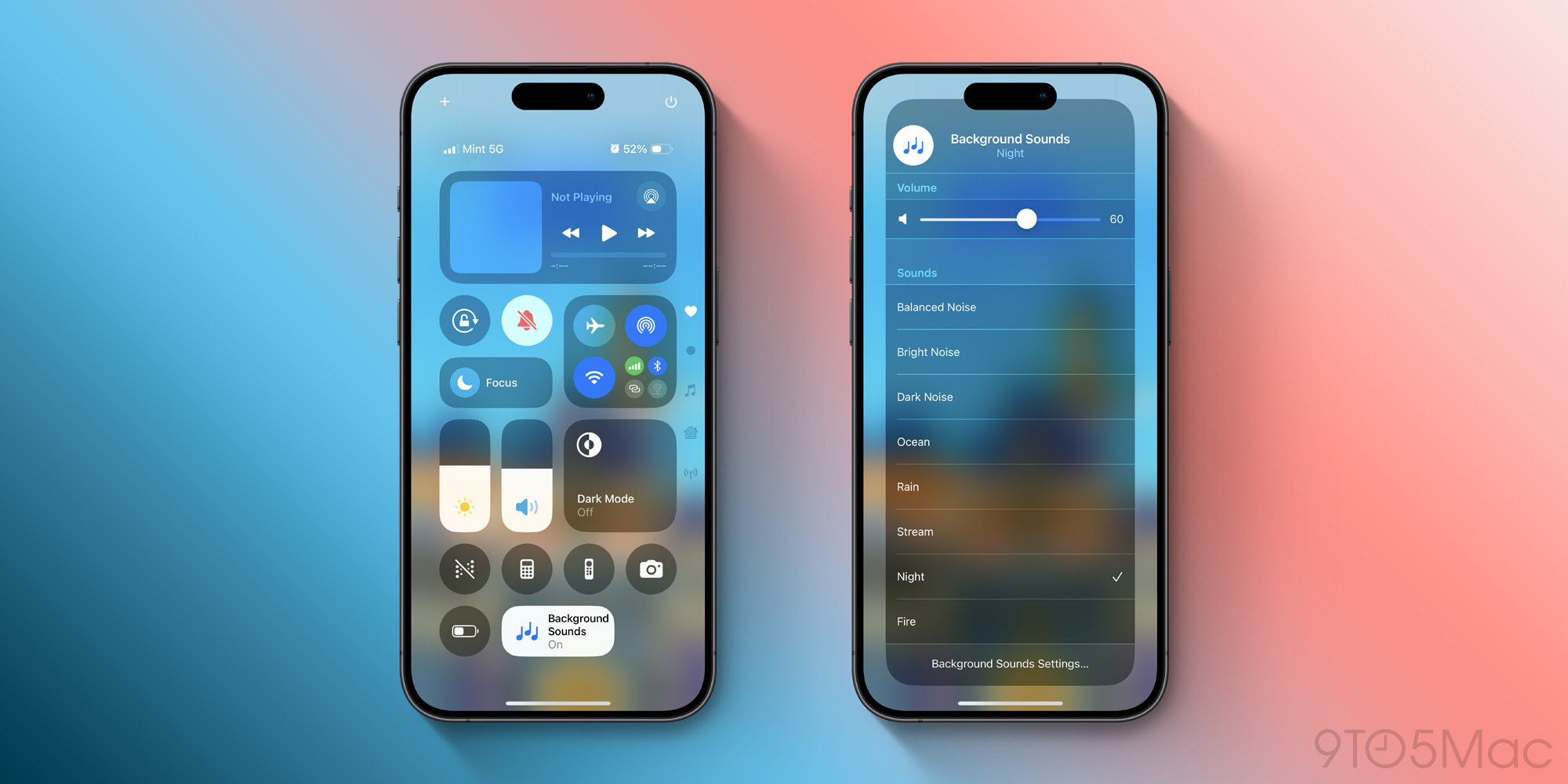
In iOS 18, two new ‘Background Sounds’ were added, as was a dedicated Control Center toggle.
I especially love the new Fire sound, and turn it on and off throughout the day with a quick tap in Control Center.
To set up your Background Sounds control, just search in Control Center or navigate to the Hearing Accessibility section.
What are your go-to Control Center controls? Let us know in the comments.
FTC: We use income earning auto affiliate links. More.