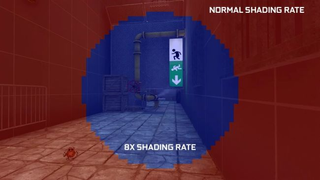
Nvidia’s new Variable Rate Supersampling (VRSS), which launched in a driver update during CES 2020 , promises high-quality antialiasing in VR games with less of a performance hit than traditional Multisample anti-aliasing. But at least at this early stage, VRSS doesn’t deliver on its promises the way we would hope -- at least in the games we tested. We’ve reached out to Nvidia for suggestions about other games or settings to test and will update the story with further testing once we hear back.
Nvidia made several announcements at CES 2020, but the one that caught my eye was its new VR shading technique called Variable Rate Supersampling (VRSS). The company said that this new shading process promises improved image quality in VR games with a low impact on performance.
That’s a bold claim from Nvidia that I believe merits further scrutiny. Fortunately VRSS is available at launch for us to put to the test. It does not require any input from developers as it is a driver-supported shading technique that can be applied to any DX11-based VR game or application that uses Forward Rendering and has support for MSAA.
Nvidia must validate games before enabling support in the drivers, so not every title supports this feature today. The initial release of VRSS, which is included in Nvidia’s CES 2020 Game Ready Driver 441.87 , features support for 24 titles.
| Battlewake | Lone Echo | Serious Sam VR: The Last Hope |
| Boneworks | Mercenary 2: Silicon Rising | Skeet: VR Target Shooting |
| Eternity Warriors VR | Pavlov VR | Space Pirate Trainer |
| Hot Dogs, Horseshoes and Hand Grenades | Raw Data | Special Force VR: Infinity War |
| In Death | Rec Room | Spider-Man: Far From Home |
| Job Simulator | Rick and Morty: Virtual Rick-ality | Spider-Man: Homecoming – Virtual Reality Experience |
| Killing Floor: Incursion | Robo Recall | Talos Principle VR |
| L.A. Noire: The VR Case Files | SairentoVR | The Soulkeeper VR |
Nvidia plans to add more to the list in future driver updates.
Tensor Cores Are Required
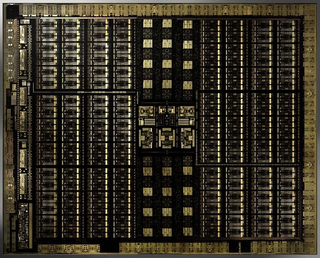
If you own one or more of the 24 supported titles, you can try VRSS today. However, you will also need an Nvidia 20-series graphics card. VRSS uses Nvidia’s Variable Rate Shading , which is enabled by Nvidia’s Turing architecture. It leverages the power of Nvidia’s Tensor cores to dynamically apply supersampling when the GPU has the headroom.
The way that VRSS works is similar to the concept of foveated rendering in that it designates varying image quality zones to improve performance. Foveated rendering allows the GPU to put more resources towards the area of focus while allowing everything else to be downsampled to improve performance.
VRSS takes that concept and applies it to GPUs that have more than enough power to deliver full image quality without skipping a beat and still have more performance to give. VRSS uses those extra clock cycles to improve the image quality of the primary focus zone, while leaving the peripheral view at the standard resolution.
VRSS has two modes: On and Adaptive. Nvidia recommends using the adaptive mode, which will dynamically adjust the size of the foveation zone to match the available resources. For less-intense scenes, the zone expands to apply anti-aliasing to a larger area. In more complex scenes where the GPU must work harder, the zone scales down so as not to exceed the performance limits of your graphics cards.
Toggling VRSS on sets the central foveation zone to a fixed size that Nvidia describes as “ adequate to cover the user’s field of view .” This zone provides the maximum image quality for supported games but is also very resource-intensive, which could affect performance in demanding games.
It’s important to understand that VRSS is not in itself an antialiasing technology. VRSS just applies a template over the scene that dictates where MSAA can be applied. As such, you must use the in-game graphics settings to choose between MSAA 2x, 4x, or 8x.
For example, if you turn VRSS on and set the in-game MSAA setting to 4x, the scene will render the outer zone at standard resolution and the inner section will have 4x MSAA applied to it.
How Do You Enable VRSS?
To enable VRSS, you’ll first need GeForce Game Ready Driver 441.87 or later, but that’s not the end of the story. You go into the Nvidia Control panel and enable VRSS manually, and the driver doesn’t include a global setting for this feature. You must enable VRSS one-by-one for each game you wish to use it with.
First, right-click on your desktop and select Nvidia Control Panel from the list. Next, find the Manage 3D settings tab on the left side. Click on the Program Settings tab and allow the list to populate. Remember to keep the check-in the box for “show only programs found on this computer” or the list will include every game or app that Nvidia has made drivers for.
Next, find your game in the drop-down list. In section 2, scroll to the bottom of the list where you should find Variable Rate Supersampling. Here you’ll be able to select on or adaptive. Hit apply and the next time you open that game VRSS will be enabled.
The final step is done in-game. You must enable MSAA and dictate the maximum supersampling rate. VRSS will do the rest.
Putting VRSS To The Test
To put VRSS to the test, we used our standard VR review system, which includes an Intel Core i7-8700K and a GeForce RTX 2080 Founders Edition . All VRSS tests were performed with a Valve Index headset . We ran a combination of 90hz and 120Hz tests to explore the limits of Nvidia’s new technology.
According to Nvidia, games with “high-resolution textures, high-frequency content, and textures with alpha channels (fences, foliage, menu icons, text, etc.)” are the best candidates for supersampling. We chose Space Pirate Trainer and Serious Sam VR: The Last Hope for our initial VRSS testing because they both fit that description well.
These two games should also serve as polar opposites for the adaptive VRSS test. The environment in SPT is very sparse, whereas the environment in Serious Sam is rife with foliage and other objects to render. Adaptive VRSS should behave differently in both games, as demonstrated in Nvidia’s developer blog about VRSS. In Space Pirate Trainer , the central region should remain quite large, while the central region in Serious Sam VR is more likely to fluctuate based on what’s happening on-screen.
Space Pirate Trainer
Space Pirate Trainer turned out to be a poor representation of what VRSS can do. You don’t spend a lot of time looking at the finer details of your guns or the droids you’re shooting at while you’re ducking and dodging incoming laser fire. I definitely did not notice the difference between the varying image quality settings while playing the game. The benchmark numbers, however, shed light on what was going on in the background.
Space Pirate Training @ 90Hz
Running Space Pirate Trainer at 2016x2240@90Hz is a walk in the park for an RTX 2080. Even with MSAA set to 8x, the average delivered framerate was 89.65 fps. Our fpsVR report indicated that 100% of all frames were delivered at or before the expected 11.1ms threshold.
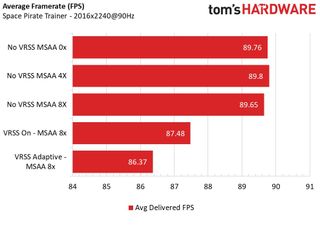
Curiously, with VRSS enabled, we saw a dip in performance. With VRSS set to on, the average framerate dipped to 87.48. The results were even worse with adaptive VRSS enabled, with the average framerate coming in at 86.37 fps.
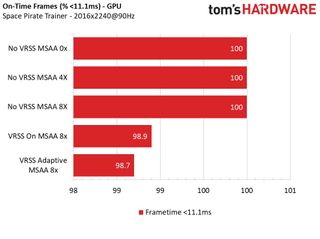
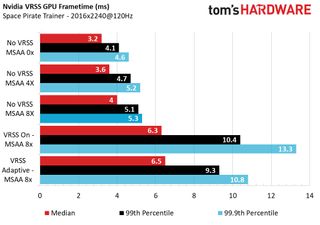
VRSS doesn’t do well for GPU frametime either. Our median frametime increased from 4.2ms with MSAA 8x enabled and VRSS off, to 6.6 ms with Adaptive VRSS and 7.4 ms with VRSS on.
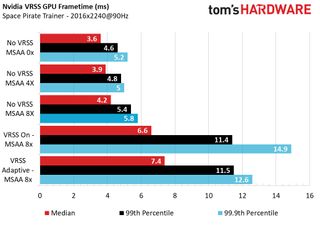
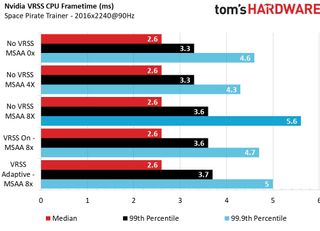
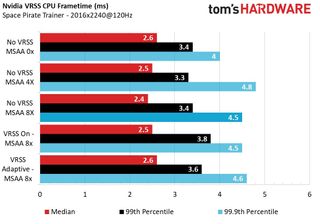
VRSS did not have any meaningful effect on CPU frametime.
Space Pirate Trainer @ 120Hz
When we tested Space Pirate Trainer at 120Hz, the results were largely the same as our 90Hz tests. With VRSS off, our RTX 2080 managed to keep the framerate at a smooth 119.72 fps with MSAA 8x enabled and 100% of all frames were delivered in 8.3 ms or less.
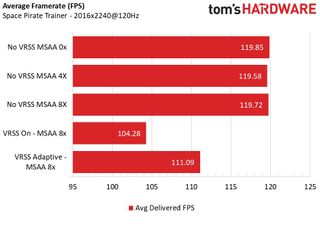
However, with VRSS set to adaptive, the framerate dropped to 111.09 fps with 3.2% of frames missing the 8.3 ms mark. VRSS On fell to 104.28 fps with over 10% of frames missing the target delivery time.
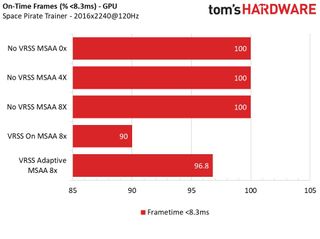
VRSS again had a negative effect on the GPU frametime, causing an increase of more than 2 ms to the median frametime. Despite having no increase in CPU frametime, the fpsVR report indicated that our CPU usage increased from less than 50% to as much as 80% when either mode of VRSS is enabled.
Serious Sam VR: The Last Hope
Serious Sam VR is a much better example of a game that can take advantage of VRSS. There are far more details in the environments of Serious Sam VR than the open expanse that is Space Pirate Trainer . The battles in Serious Sam are also quite a bit more intense than those in Space Pirate Trainer (particularly the endless wave mode that we use for benchmarking).
That said, we still observed negative performance characteristics that make us question the usefulness of Nvidia’s flashy new technology.
Serious Sam @ 90Hz
Serious Sam VR demands a lot more from your PC than Space Pirate Trainer , and as such, enabling MSAA has a noticeable effect on performance. With MSAA disabled, our system managed a smooth 89.57 fps, but as soon as we toggled it on performance started to drop.
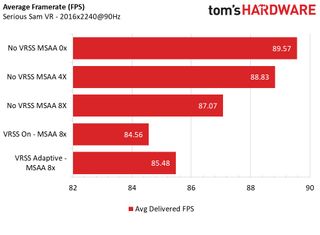
With MSAA 4x enabled, the average framerate dipped to 88.83, which was imperceivable while playing. It resulted in less than 0.01% of frames delivered later than 11.1ms. MSAA 8x knocked another frame off the average and caused nearly 2% of all frames to come in late.
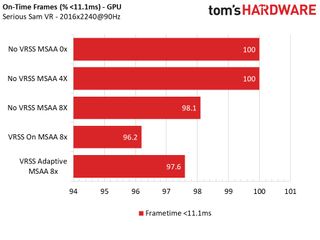
Once again, VRSS had a negative net effect on performance. With Adaptive VRSS enabled, the average framerate dipped to 85.48 fps, and VRSS on made it sink to 84.48 fps. We also saw a further dip in on-time frame delivery, with 3.4% arriving late with Adaptive VRSS, and 3.8% tardy frames with VRSS On.
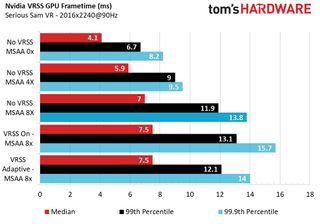
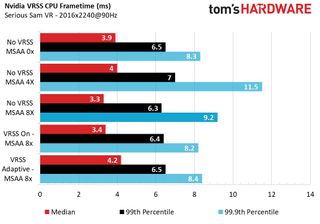
In Serious Sam VR , Adaptive VRSS has roughly the same effect on GPU frametime as MSAA 8x by itself. VRSS On caused a further delay in frametime.
Serious Sam @ 120Hz
We tested Serious Sam at 120Hz with the exact same in-game graphics settings as our 90Hz test. As such, even our base test wasn’t hitting the minimum threshold of 120Hz. While you wouldn’t want to play the game like this long term, we pressed on with these settings because it gave us an opportunity to see how VRSS performs under duress.
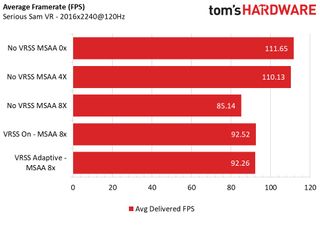
With MSAA disabled, our average frame rate topped out at 111.64, which resulted in 98.8% of frames delivered on time. MSAA 4x had almost identical results with an average of 110.13 fps and 96.6% of frames delivered on time.
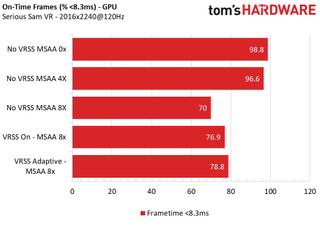
MSAA 8x had a precipitous effect on performance, causing the average framerate to dip all the way to 85.14 fps. That resulted in only 70% of frames reaching the HMD in less than the desired 8.3ms.
In this case, VRSS actually did improve performance by a nominal rate. With Adaptive VRSS enabled, the framerate climbed back up to 92.26 fps and 78.8% of frames delivered on time. VRSS On gave us the same framerate and less than a 2% loss of on-time frames.
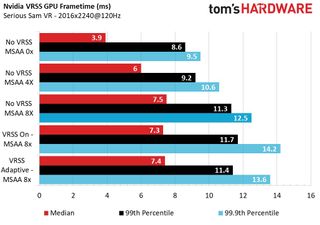
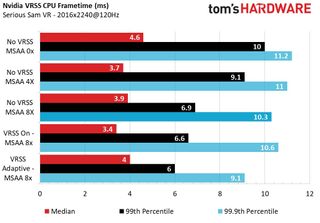
As with our 90Hz tests, the 120Hz GPU frametime tests showed that the performance overhead of VRSS is very similar to that of MSAA 8x. That said, at this resolution, VRSS improved our CPU frametime results. With Adaptive VRSS enabled, our 99.9th Percentile results matched the 99th percentile results of our MSAA 4x tests.
Conclusion
Nvidia made some bold claims about VRSS, but our numbers on these two test titles don’t back up their claims. These tests hardly count as a comprehensive evaluation, but with only 24 supported titles, every game should work as expected. Again, we’re hoping to hear back from Nvidia with further testing / title suggestions.
We can see potential in the theory behind VRSS and we wouldn’t be surprised to see this technology work out in the long run. With some driver refinements, VRSS could unlock the performance that Nvidia promised.
But for now, VRSS appears to be more of a curse than a blessing. Contrary to what we expected, we observed a negative performance impact with VRSS enabled. It’s probably best to wait for Nvidia to iron out the kinks from this one before jumping onto the VRSS bandwagon.
MORE: Best Graphics Cards
MORE: Desktop GPU Performance Hierarchy Table
MORE: All Graphics Content
It's as if you are attempting to measure the overhead of VRSS not the potential benefit.
I think test the benefit you would need to:
Set the SS rate much higher OR
Pick titles that have difficulty with a 90hz frame rate OR
Use in-game quality settings that are high enough to significantly drop the baseline frame rate.
Overhead tests seem to be of minimal value because why would anyone use VRSS if they always hit 90Hz?
Also your headline seems misleading since you did not test the primary purpose of VRSS. Perhaps change it to something like "VRSS overhead measured at 15%!" or something. But to say it under performs when you didn't actually test the performance using desirable scenarios does not seem to be a good idea.
Difference between 90 and 86 FPS will be hardly noticeable in real life, but your graph makes it look like the performance hit is around -60%!
For the "in-time frames" it's even worse - the graph makes it look like 2/3 of the frames are missed, when in fact it's 1.3%. If that value is considered unacceptable, either bar charts are unsuitable for visualization here, or you should use a "missed frames" graph instead.
Depends on whether the HMD is using VRR (which they don't, AFAIK) or compensating for late frames with (I think) techniques like ATW. Otherwise, I'd imagine a late frames could manifest as mild stuttering and potentially contribute to VR sickness.
Either @Spratlink is right and the article mis-characterizes VRSS as an optimization, when in fact it adds additional quality, or the article is right that it's not the win it's claimed to be.
Either way, worth following-up.
However, the next test I'd like to see is what Nvidia recommends they try it on. That should basically show the maximum benefit it can provide. From there, the reader would know how much it can help, how much it can hurt, and that you should use it with care. Or, if it even hurts in the best case, then the take away is simply not to use it (unless/until an improved version is released).
Because it's VR, where framerate is king. Therefore, you want the best quality possible, but not at the expense of framerate. The underlying concept actually makes a lot of sense.
Show us what it can do when you can't hit your fr target that is specifically the purpose of VRSS that needs testing and would be of some use. The only practical thing this article showed is don't turn on VRSS if you already hit 90Hz. Duh!