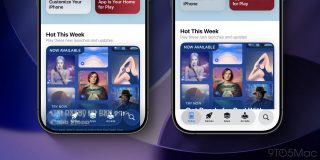
iOS 26 is packed with major changes for the iPhone, including a new Liquid Glass design . But if you’re not a fan of the fresh design, here’s how to make iOS 26 look and feel more like iOS 18 again.
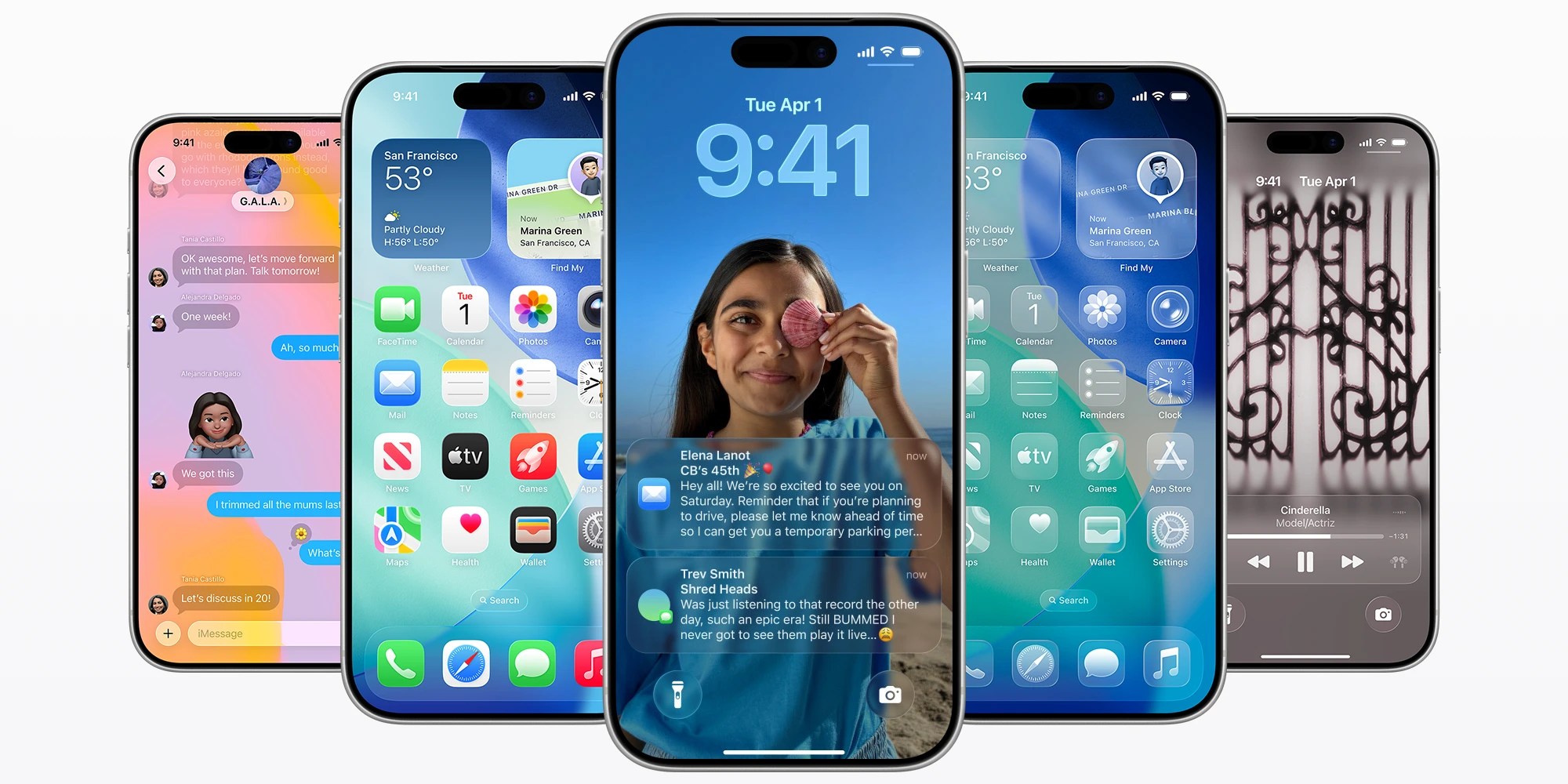
Apple’s software has a new look across all devices, with Liquid Glass at the center.
So far based on social media, Liquid Glass seems to understandably be getting a wide variety of responses, ranging from positive, to negative, and indifferent.
If you’re not a fan of Liquid Glass, whether for aesthetic or readability reasons, Apple has provided a Settings toggle that can help.
To find it, follow these simple steps in iOS 26:
- Open the Settings app on your iPhone
- Go to Accessibility
- Tap ‘Display & Text Size’
- Then toggle on ‘Reduce Transparency’
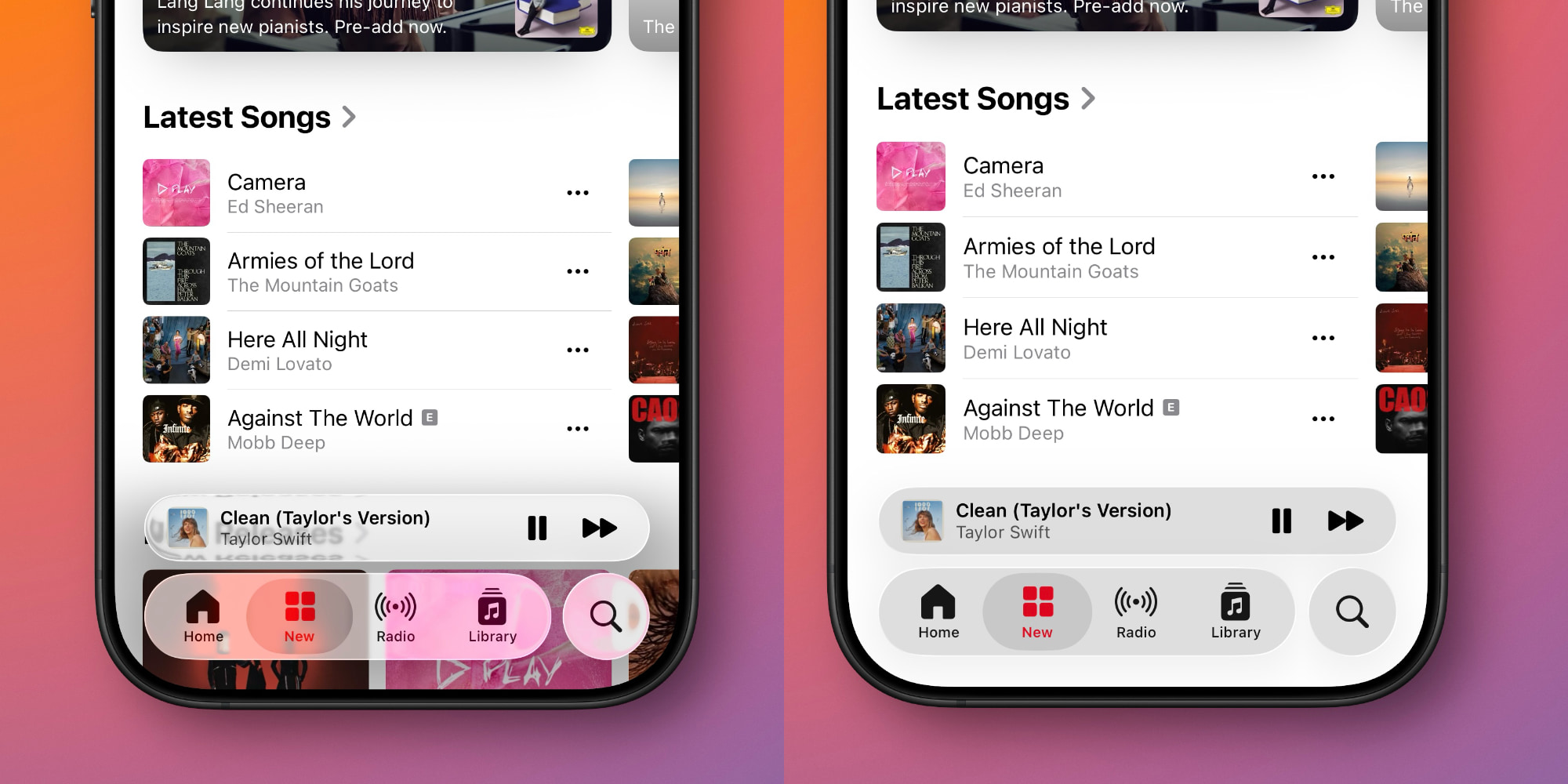
This ‘Reduce Transparency’ toggle will improve contrast throughout iOS 26 by dialing back transparency.
Essentially, the toggle de-liquifies various aspects of the Liquid Glass design, thus improving text legibility in many cases.
iOS 26 will still retain a variety of the same design changes as before, but the Liquid Glass elements at least will look and feel more iOS 18-like.
What do you think of the Liquid Glass design in iOS 26? Let us know in the comments.
FTC: We use income earning auto affiliate links. More.