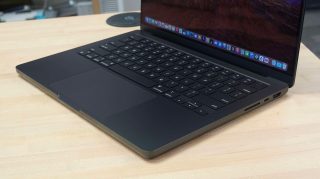
Optimizing and perfecting my Mac setup is one of my favorite things to do. I love my M4 MacBook Pro, and surrounding it with accessories that improve my productivity is key to my workflow.
Here’s a rundown of the current products on my desk as I write this very story …
Table of contents
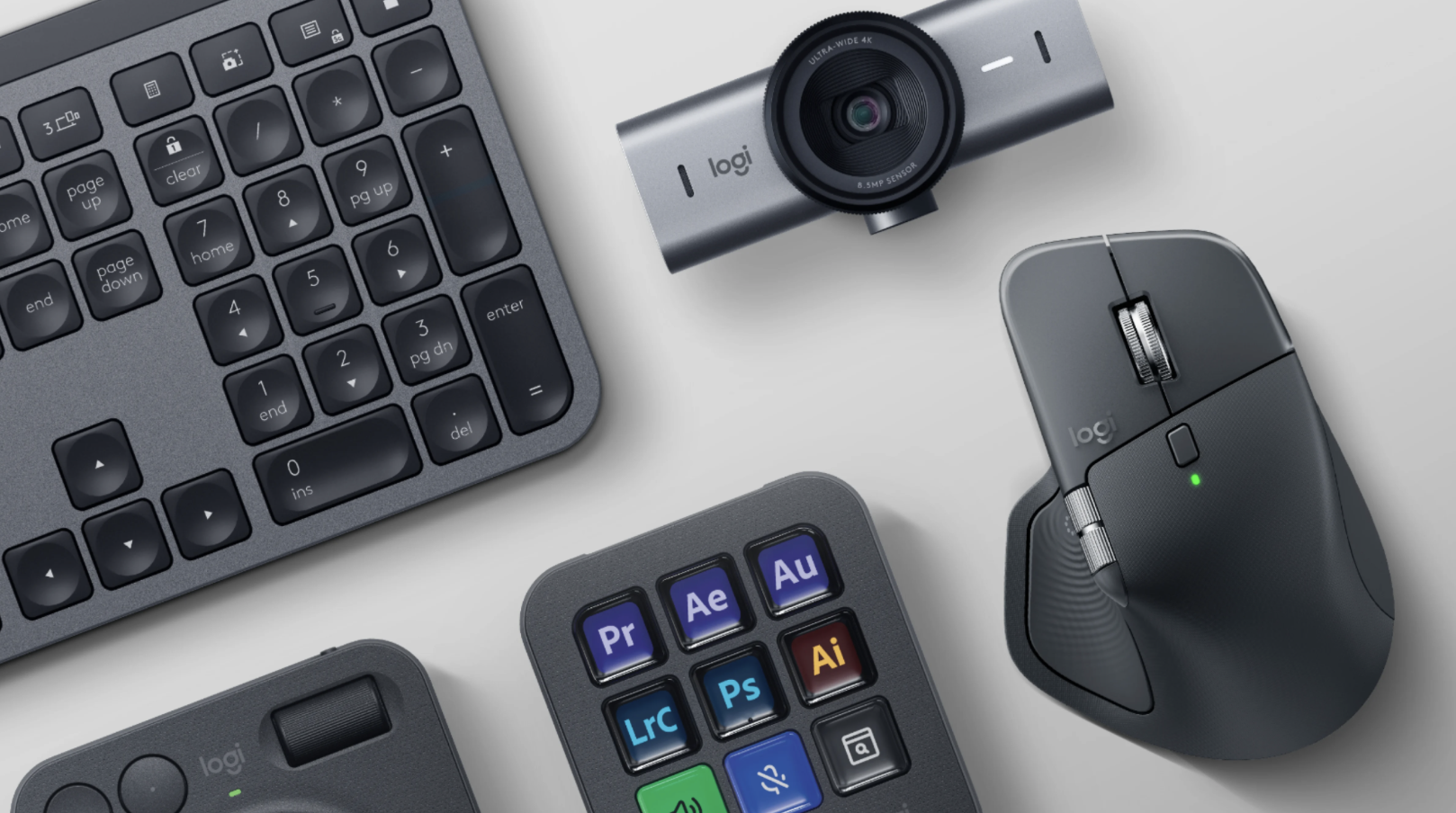
I’ve used a Logitech MX Master mouse at my desk for years at this point. Needless to say, I was pretty excited to see Logitech announce the this year. It’s not a dramatic revamp, and that’s a good thing. It’s an evolution of the form factor we’ve all come to love, combined with clever new features like haptic feedback.
While the shape is mostly the same, there’s a nice change to the build quality. It’s more stain-resistant than before and replaces some of the rubbery finish with a new textured plastic material.
- (Act quick! It’s been selling out on a regular basis.)
You can read our full .
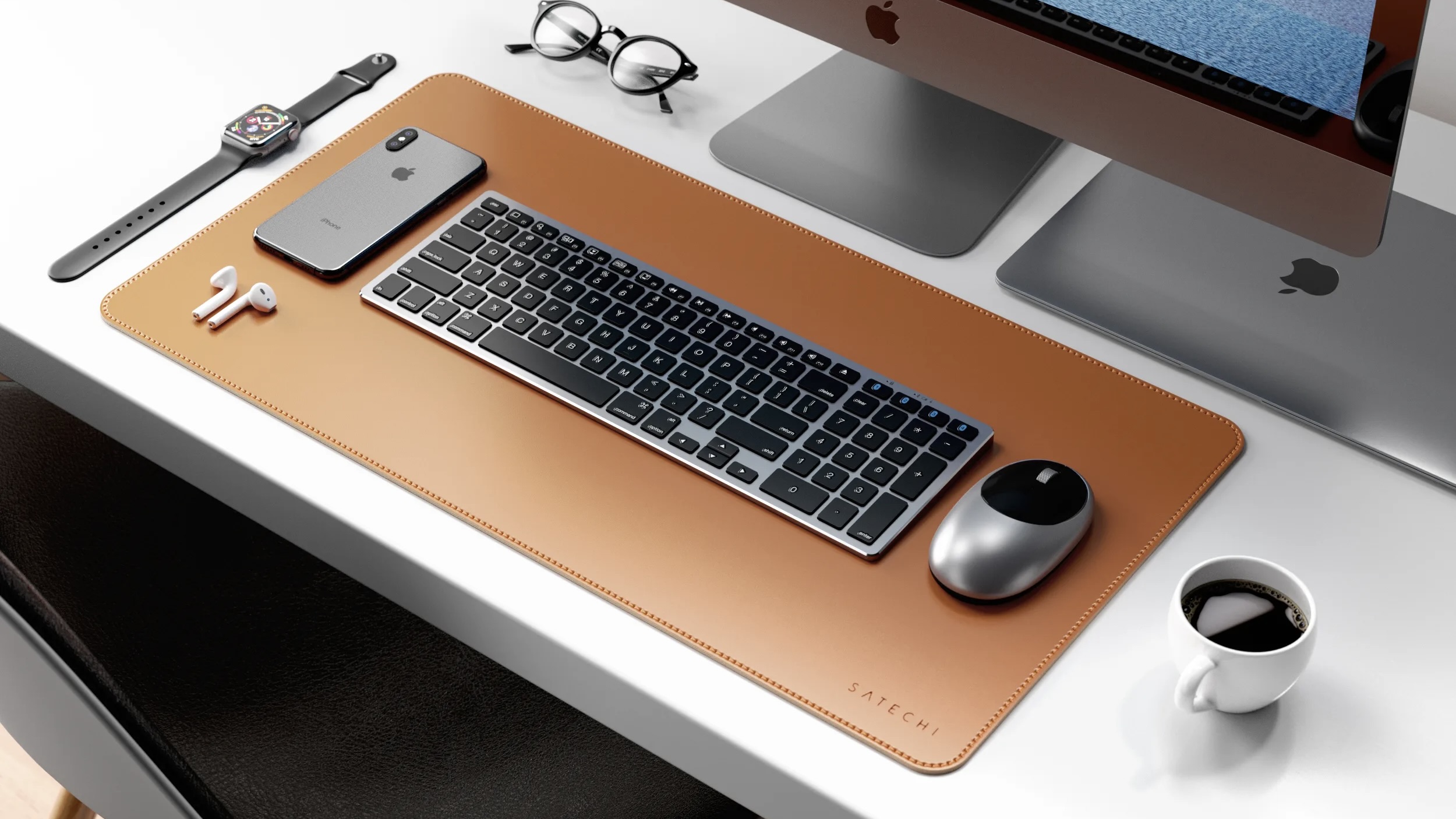
Visually, one of my favorite upgrades to a work-from-home desk setup is the addition of a nice desk mat. My recommendation in this category comes from Satechi, which offers an eco-leather desk mat in $39.99 price point.
I’ve been using these for a while and find them to be very durable and versatile, thanks to the dual-sided design. Notably, one of the sides doesn’t feature a Satechi logo, which makes it the best side.
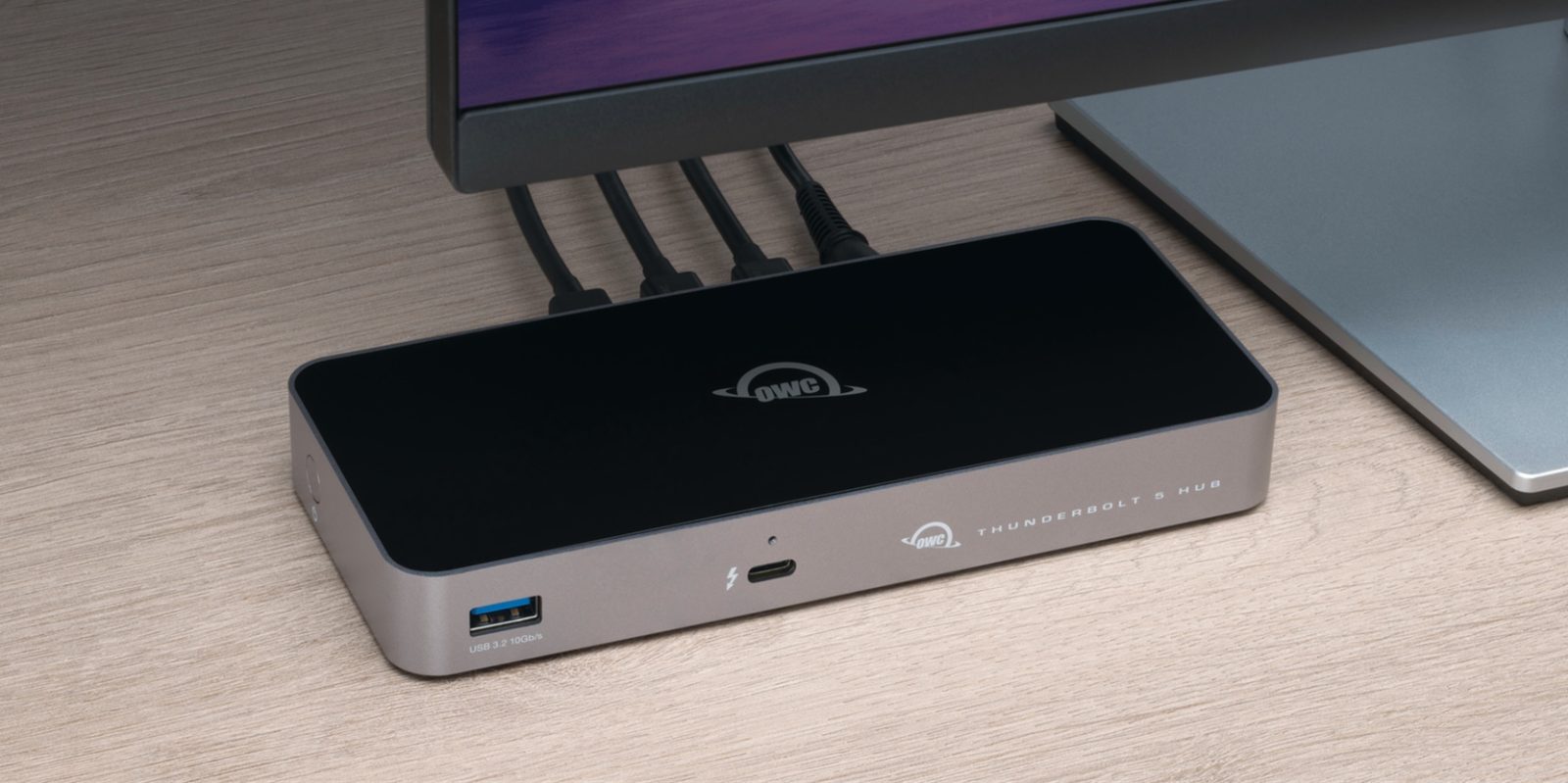
One key to my MacBook Pro setup is having a single cable connection to my display and accessories. I want to sit my laptop down on my desk, plug in one cable, and have instant connectivity to everything.
The is what enables this for my setup. It has four Thunderbolt 5 ports and a USB-A port. There’s also a with an SD card slot, Ethernet, another USB-A port, and more.
I’ve used OWC’s Thunderbolt hubs for years at this point and have never had a problem. The peace of mind knowing I have a single-cable setup is invaluable when you’re using a MacBook as both your laptop and desktop.
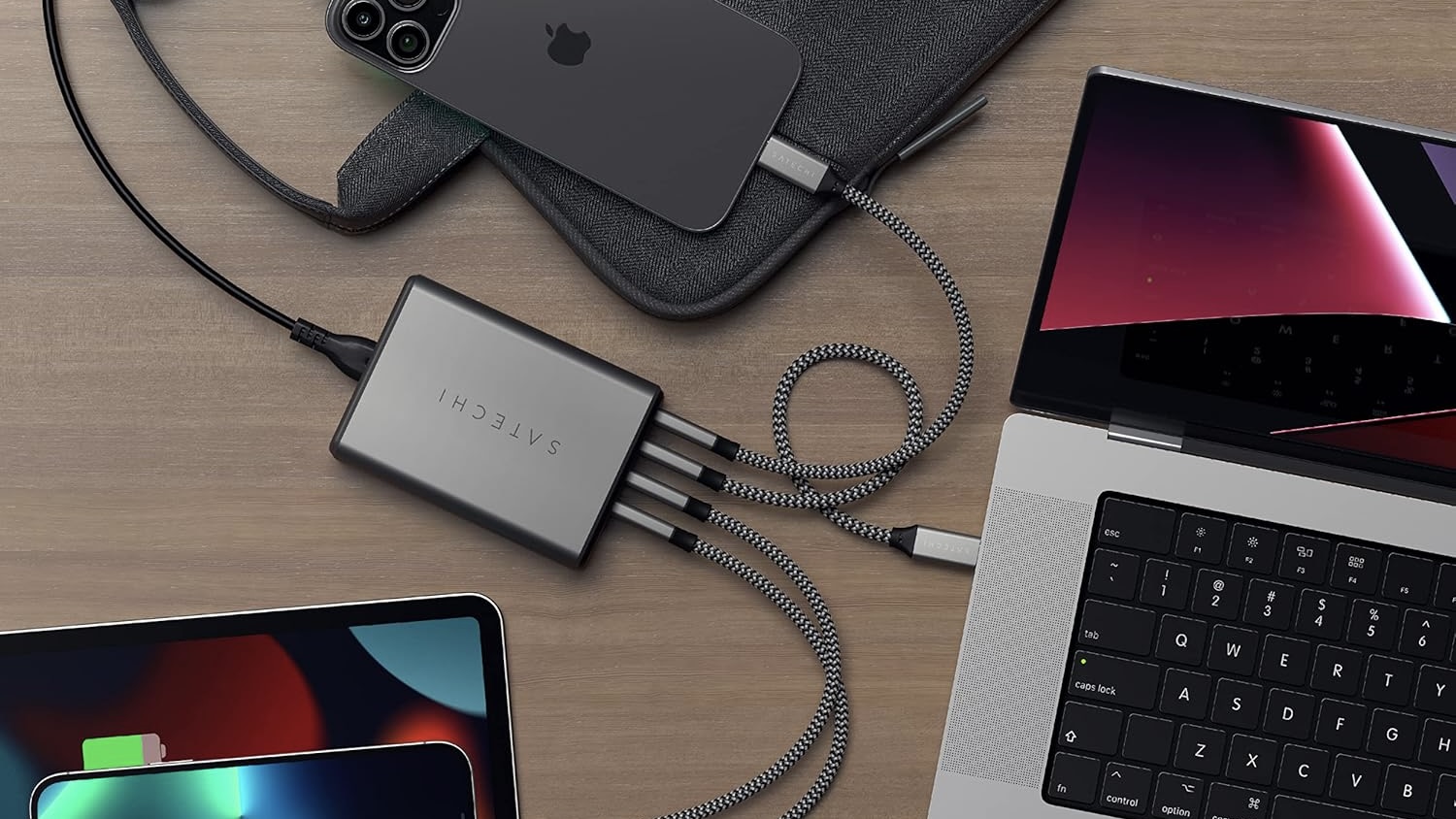
You can never have too many USB-C ports for charging your various accessories and devices. packs four USB-C ports that can charge any of your accessories or devices at full speed.
I’ve grown to love having this thing on my desk, so I always have a place to charge whatever device needs some juice at any given time. It’s pricey, but .
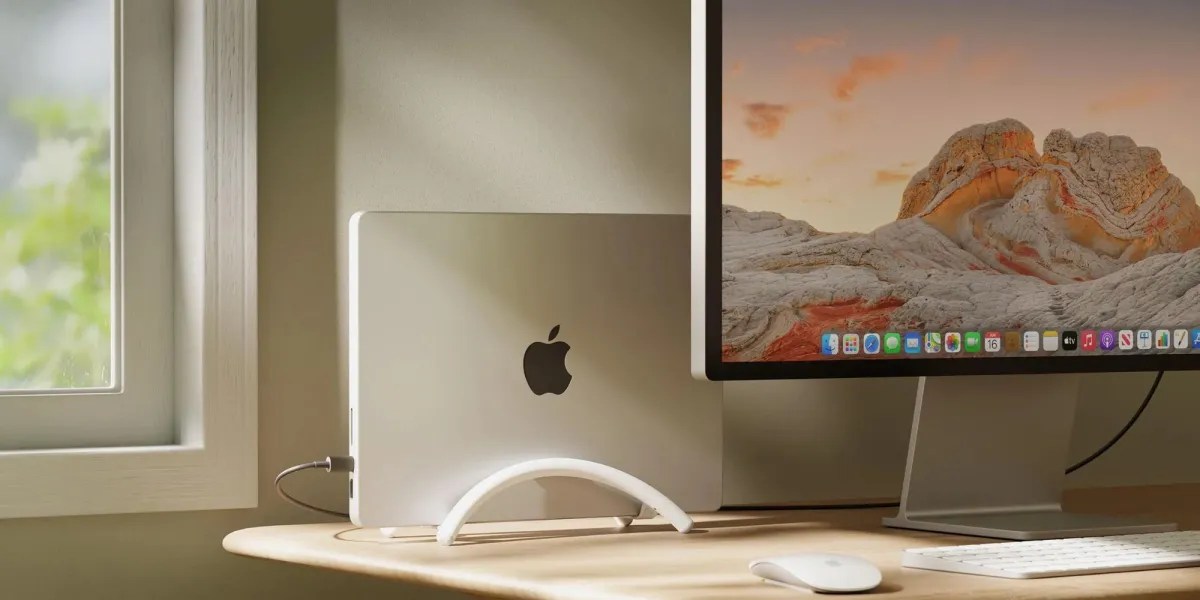
At my desk, I like to keep my laptop closed in clamshell mode and off to the side. This gives me the most desktop-like experience. To do this, I use the . This holds my MacBook Pro upright and is perfect for plugging in that aforementioned single cable every day.
That’s not Twelve South’s only option, though. If you prefer to use your MacBook at your desk with the lid open, Twelve South for that. Native Union also sells stand as well.
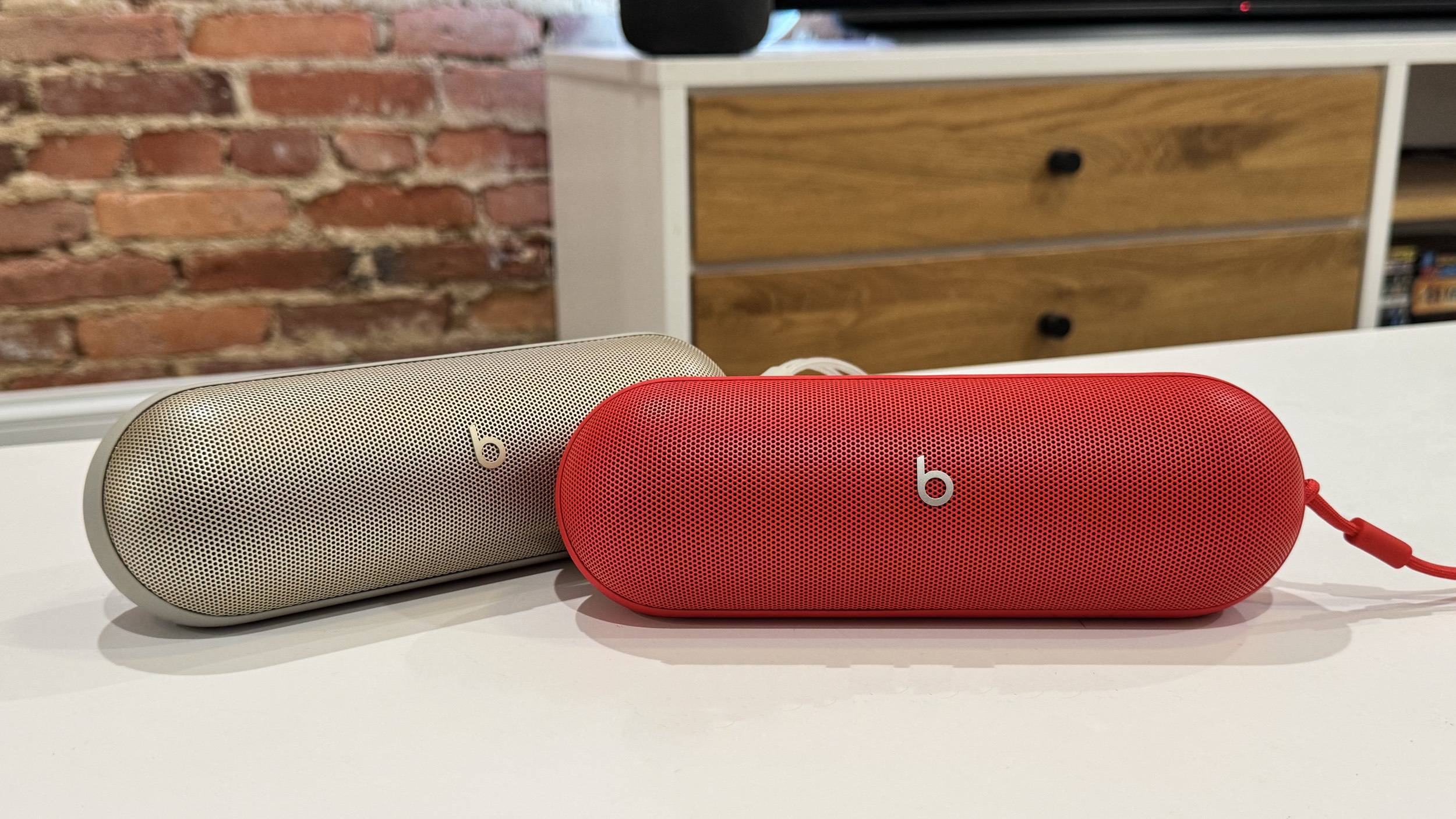
Apple brought the Beats Pill back from the dead, and it’s no secret that I adore it. My Beats Pill lives in my office, but gets carried around with me inside and outside. It’s available in a range of colors, but I’m partial to the red.
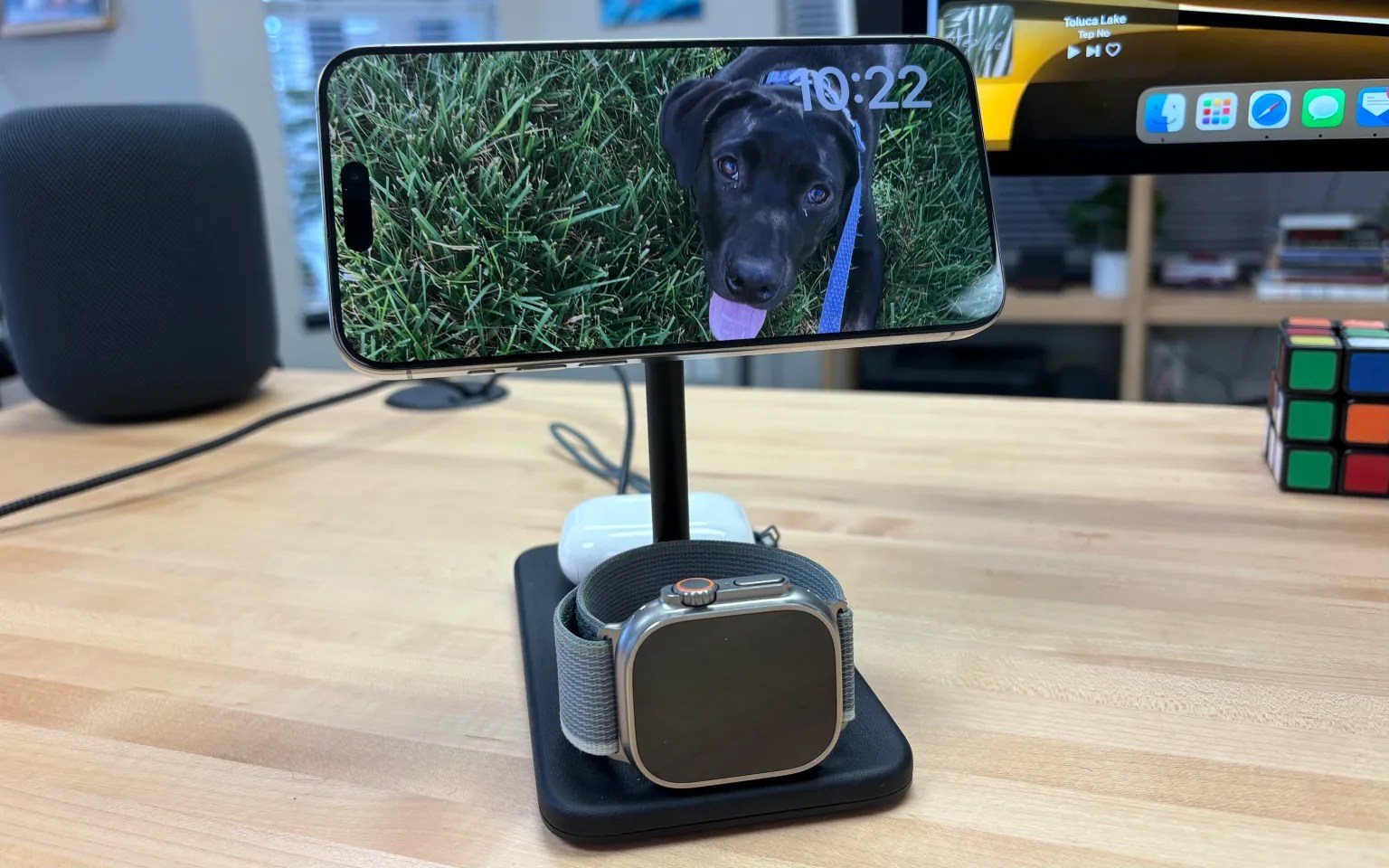
One of my favorite recent iOS features is StandBy, which basically turns your iPhone into a smart display when it’s placed horizontally on your desk. You can pick and choose widgets to show, see your favorite photos fly by, or just have a digital clock always visible.
On my desk, I have . Not only does this give me an upright charging stand for my iPhone, it also packs a separate wireless charging pad for my AirPods and a built-in Apple Watch charging puck. As someone who wears my Apple Watch overnight for sleep tracking, having a way to charge my Apple Watch at my desk is crucial.
You might prefer something with a 2-in-1 design. My favorite option here is the I have one of these in my kitchen and love it.
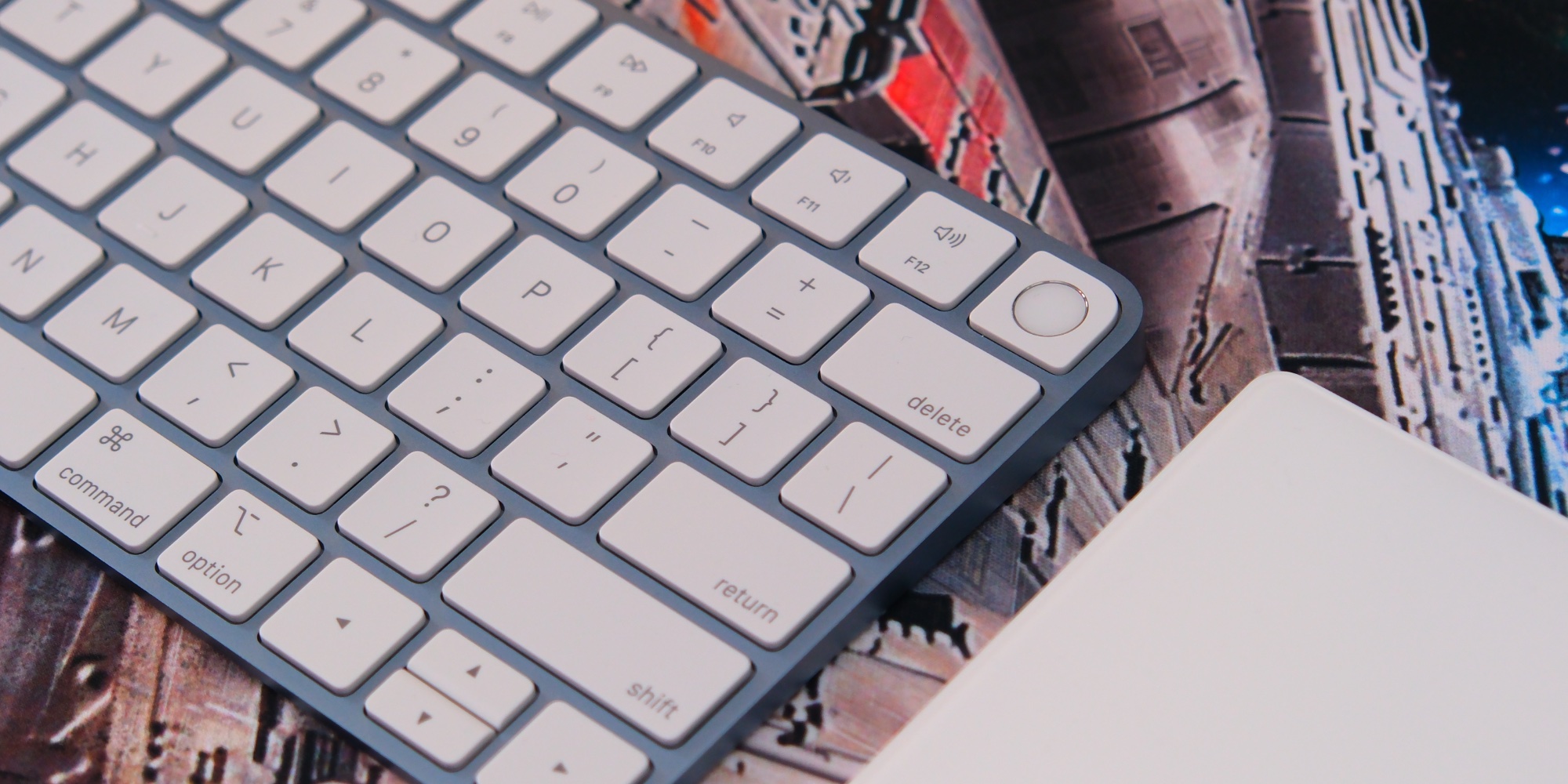
After dabbling with mechanical keyboards for a couple of years, I made the switch back to my trusty Apple this year. There are a couple of reasons for this.
First and foremost, having Touch ID is just too convenient for unlocking my Mac, paying with Apple Pay, checking the Passwords app, and more. You simply can’t beat the integration. Second, I enjoy the consistency of having a similar keyboard “feel” between my desktop setup and my laptop. It always took me a few minutes to adjust when switching between a mechanical keyboard and my MacBook Pro’s keyboard.
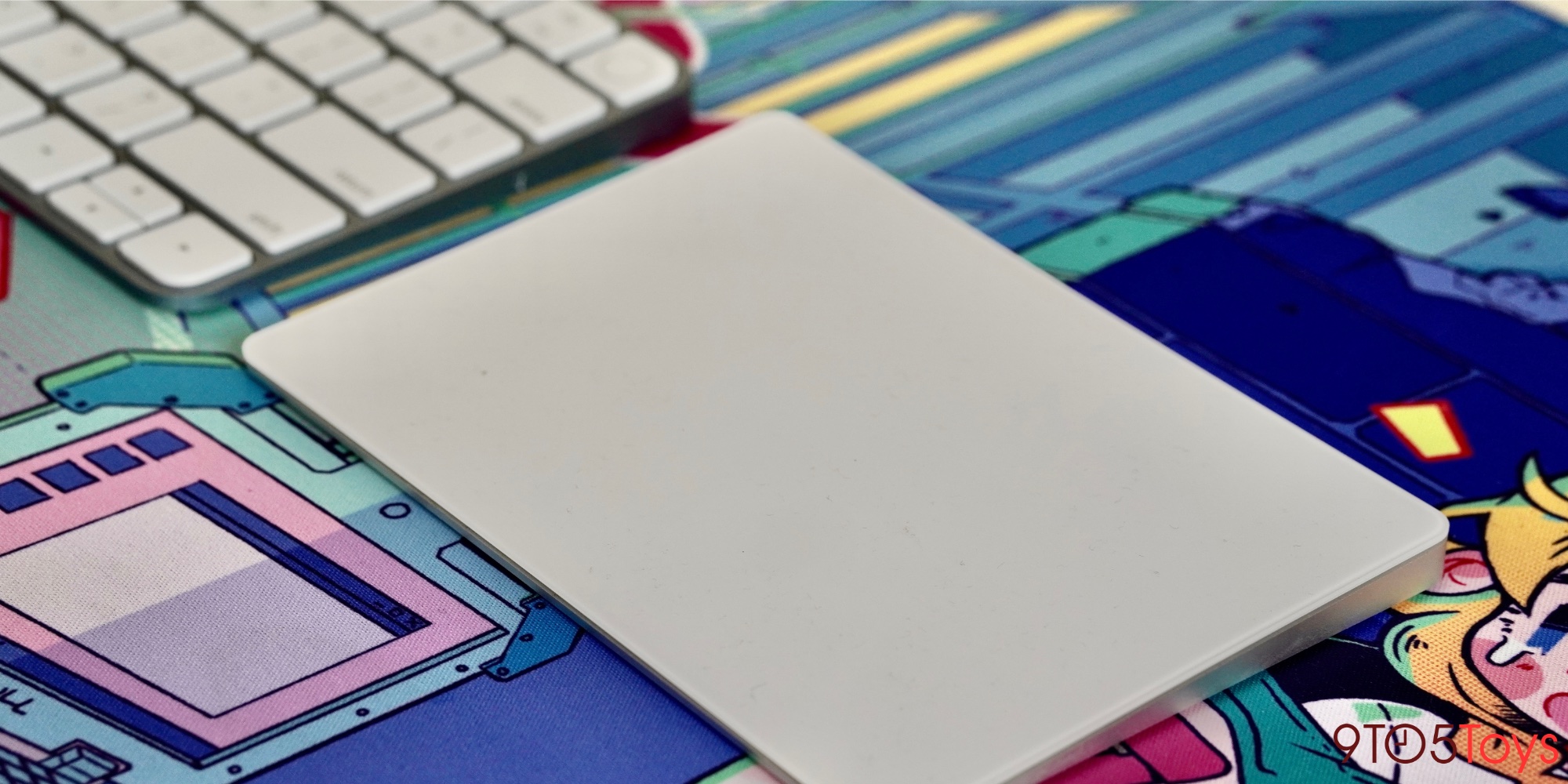
Yes, in addition to the aforementioned mouse, I use an . My setup is this: Magic Keyboard in the middle, Magic Trackpad on the left, and Logitech MX Master on the right. I use the Magic Trackpad primarily for gesture-heavy tasks like editing in Logic Pro, Apple Photos, and Pixelmator.
It might sound excessive, but I spend 8+ hours at my desk every day, so having multiple ergonomic options for me is crucial.
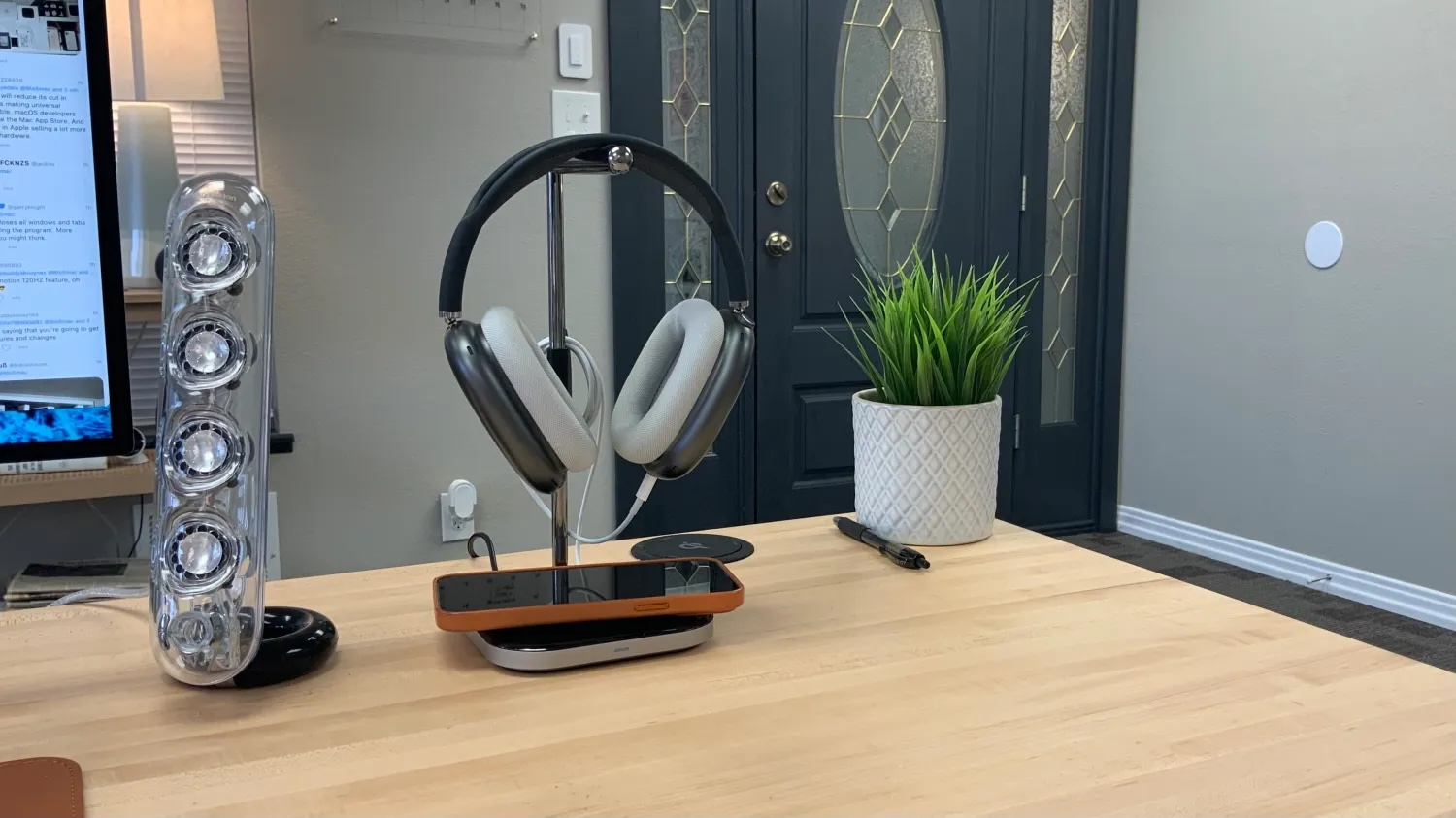
is one of the things on my desk that I get asked about most often. It features a hook design to hold your headphones, with a base that doubles as a Qi charger for your iPhone or AirPods.
On the back of the 2-in-1 Headphone Stand are two separate USB-C ports. One of these is a USB-C input port that can be connected to power, while the other is a USB-C output port.
The single USB-C input provides enough power for the Qi charger in the base, as well as to power the second USB-C output. The Qi charging pad provides up to 7.5W of power and works with any Qi-supported device, including iPhones, AirPods, and more.
Another option for headphone storage comes from Elevation Lab. The mounts to the underside of your desk using adhesive and can hold up to two pairs of headphones at the same time.
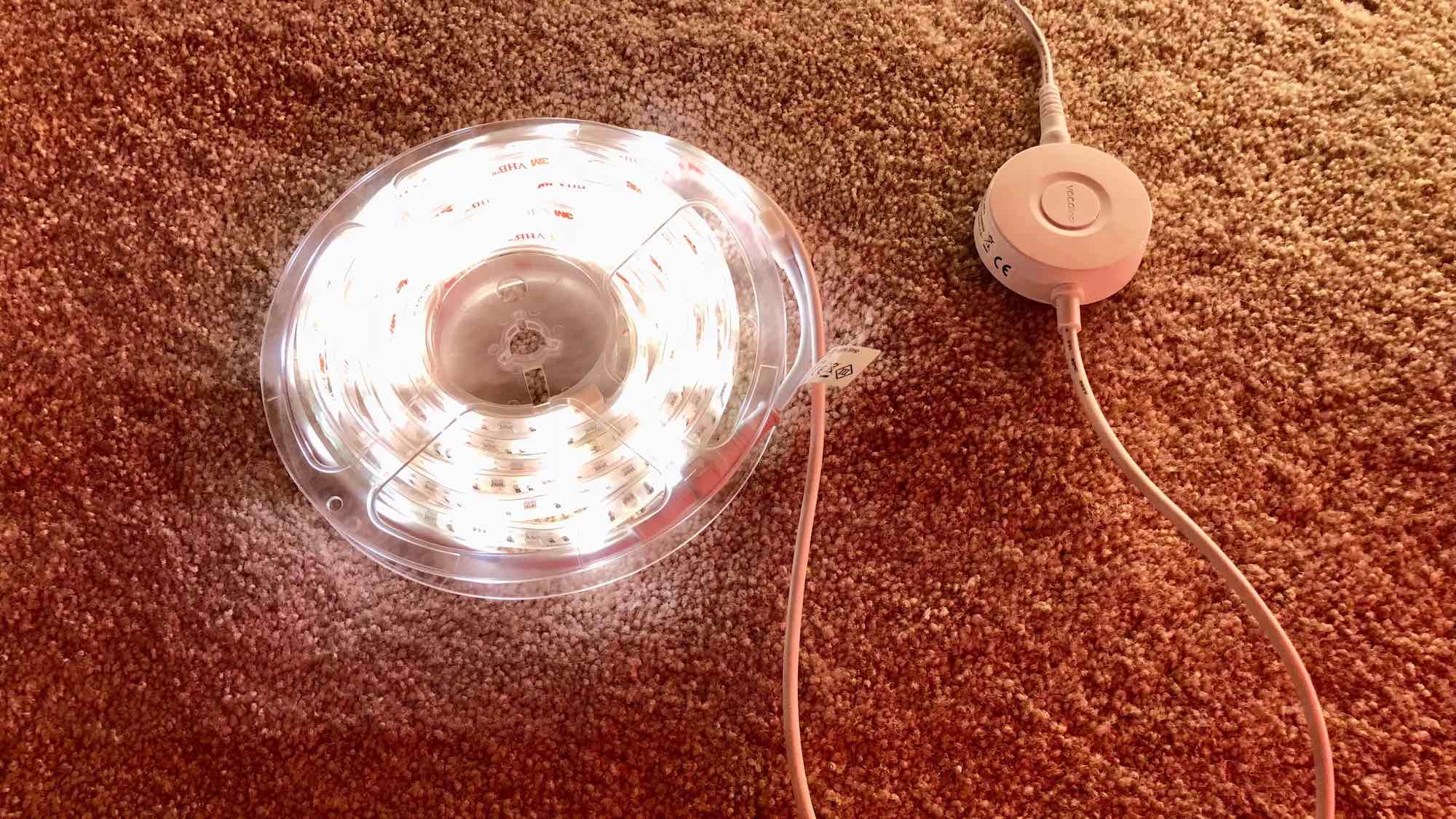
For accent lighting, you can never go wrong with some for your desk. Whether you place them behind your desk or underneath, they can provide ambience and personalization for your desk setup. HomeKit compatibility allows you to control the brightness and color from your iPhone or using Siri.
HomeKit light strips have gotten significantly cheaper over the years, with options now from reliable manufacturers.
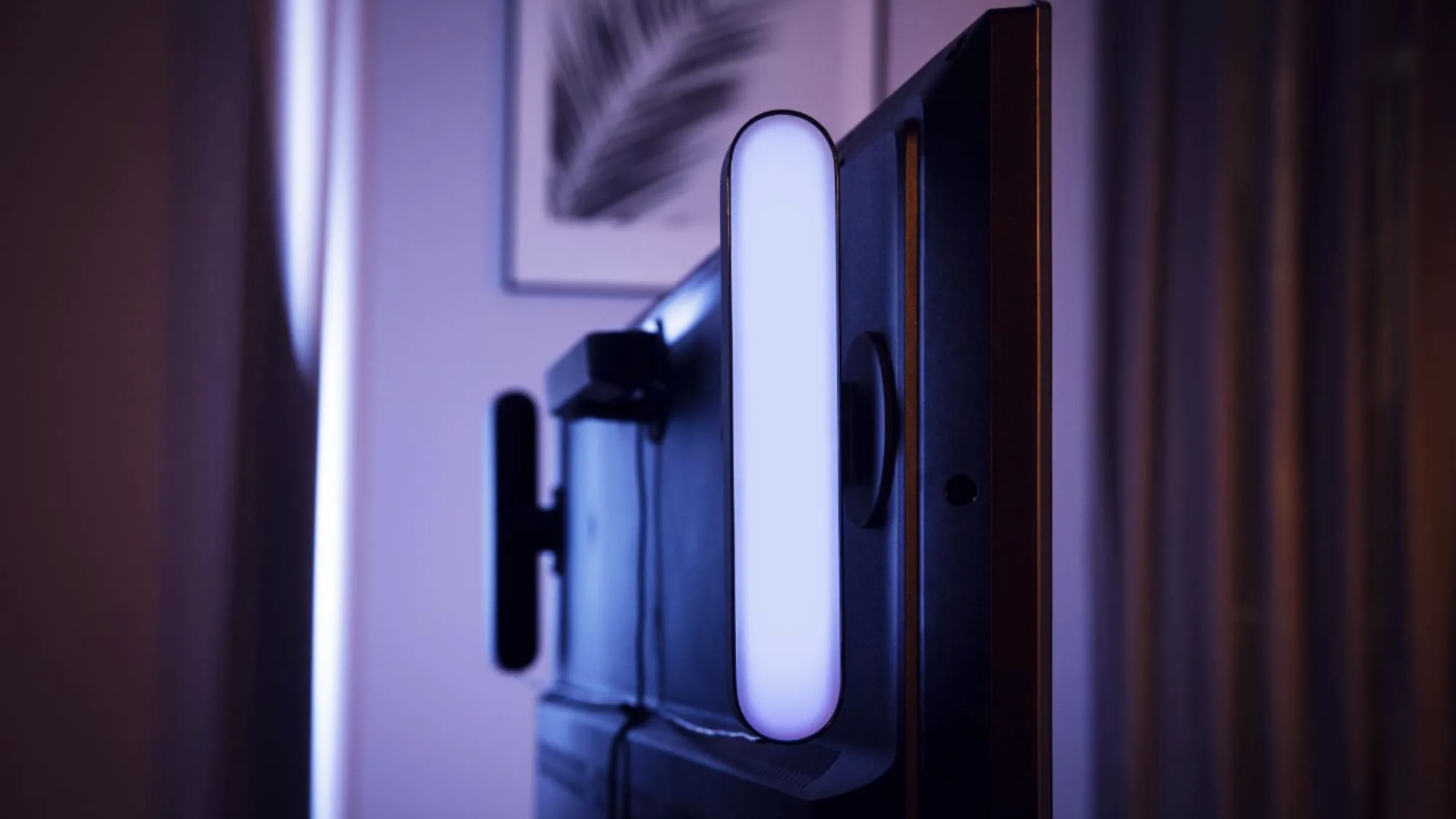
A higher-end option for desktop accent lighting comes from Philips Hue and the . These can provide some beautiful accent lighting for your office and desk, either with a stand or by being mounted to the back of your display.
These, however, are pricier than a basic light strip, and you’ll also need a Philips Hue Bridge for full functionality.
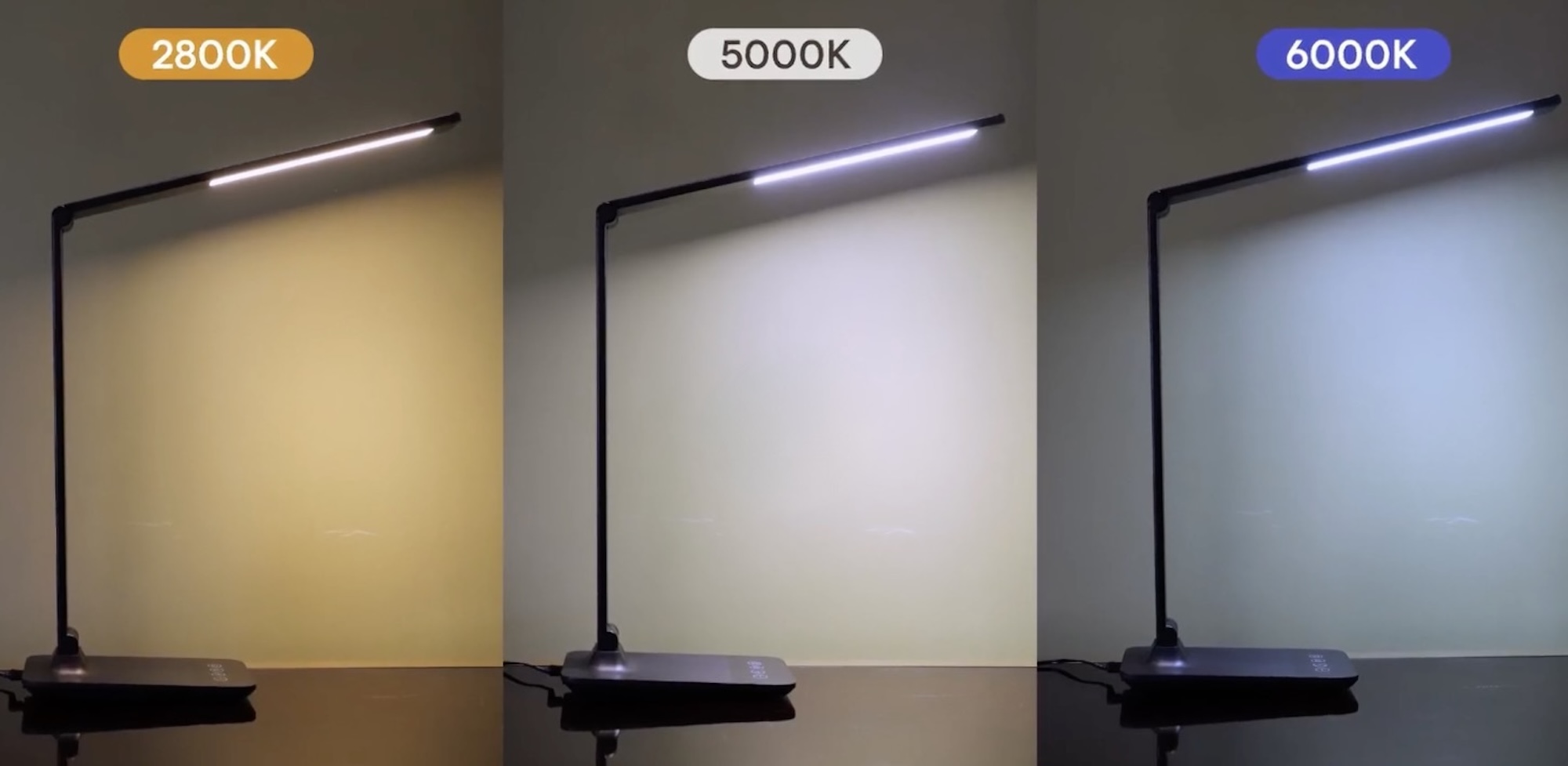
Rounding out our focus on lighting is a basic HomeKit-capable desk lamp. You can pick up a sleek from a company like Meross on Amazon for under $50. I’ve personally been for a long time and haven’t had any problems with it.
The reason I’ve included multiple different lighting accessories in this guide is that I think having subtle and customizable lighting around you can be great for productivity. This is especially true if you’re working in a room or office with bright fluorescent overhead lighting.
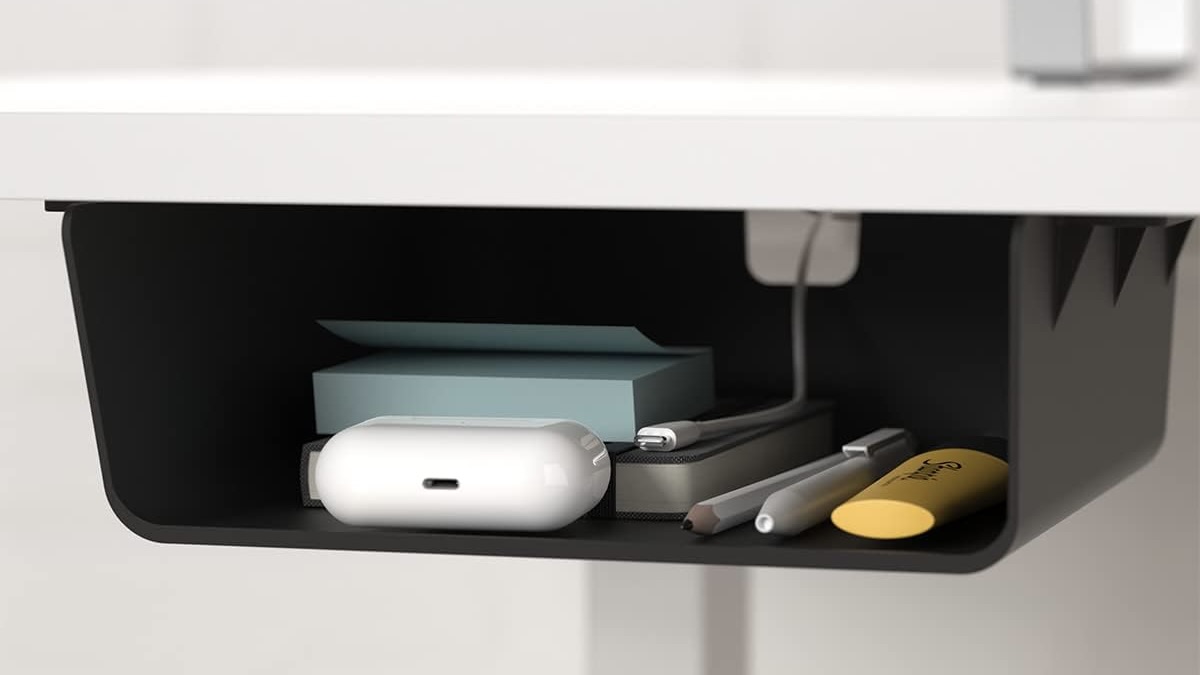
Looking for a way to keep clutter off your desk? This is a great option. It attaches to the underside of your desk using adhesive strips and can be used to store things like your keys, wallet, AirPods case, and more.
This might not seem like the most exciting accessory choice, but trust me when I say I’ve loved adding this to my setup.
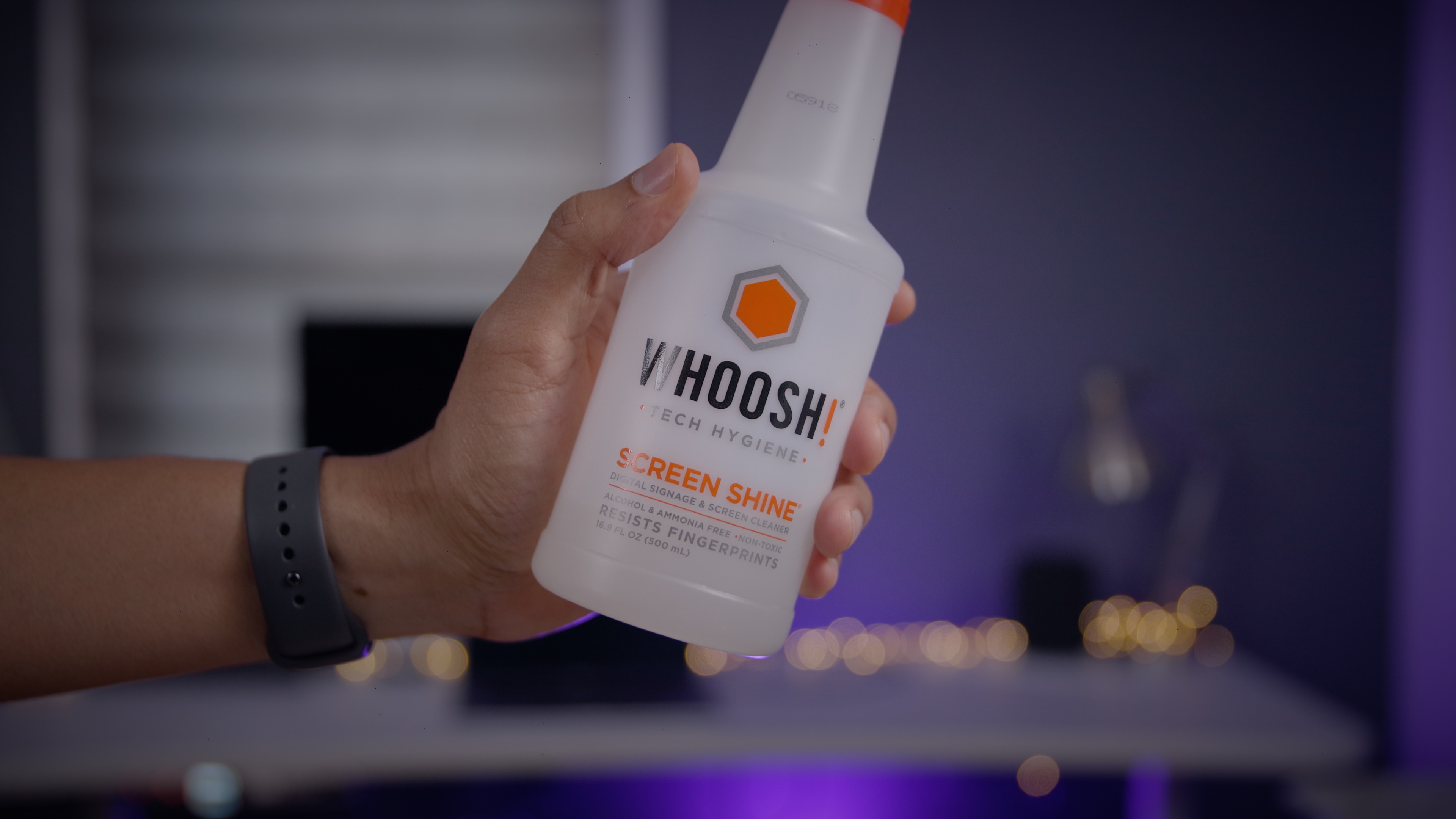
Finally, there’s no price on keeping your devices nice and clean. I have two main products on my desk for this. First is the . I’ve used this stuff for years and years. It was even Apple’s in-store cleaning solution for a long time.
Second, I have two nano-texture products: my MacBook Pro and my iPad Pro. I don’t use the WHOOSH! on these devices. Instead, I . Yes, it’s expensive, but I know it’s a safe material for the nano-texture devices in my life.
What are some of your favorite Mac accessories? Let us know down in the comments.
FTC: We use income earning auto affiliate links. More.