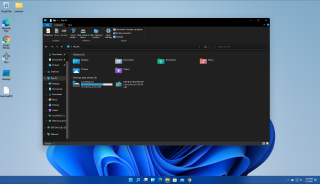
There's a lot to like about Windows 11 , but for many people the new design of File Explorer is a let down. It has a similar layout to Windows 10's File Explorer and an identical layout and functionality, but there's no ribbon menu and many of the common menu items such as "view extensions" are buried in the options submenu.
Even worse, the buttons for basic functions such as cut, paste and rename are only icons, with no tool tips or text on them to tell you what they do (presumably this is a bug). The jump lists you get when you right click on a folder may have fewer options too.

Fortunately, there's an easy way to get the old Windows 10 File Explorer back, complete with its ribbon and jump menus. You just need to edit the registry.
How to Restore the Windows 10 File Explorer to Windows 11
1. Open Regedit . You can do this in Windows 11 by hitting Windows + R and entering regedit in the Run box or you can search for regedit using the Search feature. Click Yes if asked for permission by User Account Control.

2. Navigate to HKEY_CURRENT_USER\Software\Microsoft\Windows\CurrentVersion\Explorer\Advanced

3. Right click in the right window pane and select New->DWORD (32-bit) Value . A new entry appears with the name "New Value #" and a number.

4. Rename your value to SeparateProcess . It must be spelled exactly this way.

5. Open Separate Process by double clicking it and change the value to 1 . Click Ok.

6. Close Regedit and restart your PC .
Your computer should now show the classic Windows 10 File Explorer, though some of the icon designs may be a bit different. For example, the library folders in Windows 11 are in different colors, not just yellow. Overall, though, you're getting back the user experience and functionality you lost.
If you want to go back to Windows 11's File Explorer, just change the SeparateProcess value to 0 or erase the SeparateProcess key