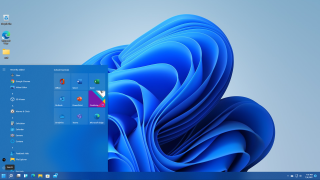
The new Start menu in Windows 11 is a polarizing piece of UI. While some people love the new layout, where it shows a recommended documents list and a list of pinned icons, others may dislike the fact that you have to click an extra time to get an A-Z list of all your apps. Or perhaps you just hate the fact that the Start Menu is now centered rather than living on the left side of the screen.
At least for now, there is an easy easy to get the old Windows 10 Start Menu back in Windows 11 and to position it on the left side. You just need a registry tweak and a settings tweak. Here's how.
How to Get the Windows 10 Start Menu in Windows 11
1. Open the registry editor . You can launching "regedit" from the Run menu (Windows + R) or by searching for "regedit" in the search menu.

2. Navigate to HKEY_CURRENT_USER\Software\Microsoft\Windows\CurrentVersion\Explorer\Advanced .

3. Right click in the right window pane and select New->DWORD (32-bit) Value . The system will create a new registry key called "New Value #1" (or #2 if you have another one).

4. Rename the registry key to Start_ShowClassicMode .

5. Set Start_ShowClassicMode's value to 1 and click Ok. You can open it by double-clicking on it.

6. Close Regedit . At this point, you will have enabled the Windows 10 Start menu in Windows 11, to take effect after your next reboot. The following steps align your icons and Start menu to the left. If you want to leave it centered, you can end at this point and reboot.
7. Launch the Taskbar settings menu by right clicking on the taskbar and selecting "Taskbar settings."

8. Open the Taskbar behaviors submenu .

9. Select Left from Taskbar alignment.

10. Close the Settings menu . Your icons should be aligned to the left now.
11. Reboot your PC .
At this point, you should see the classic Windows 10 Start menu every time you click the Start button. Unfortunately, there's no guarantee that this option will remain valid as Microsoft moves closer to the final release of Windows 11.
If you want to go back to the Windows 11 Start Menu, simply change the Start_ShowClassicMode registry key's value to 0 or delete it.